
Seam vs TopNotch: Use Your MacBook Notch or Hide It?
The MacBook notch divides Mac users into two camps: those who want it gone, and those who want it to do something. TopNotch and Seam are both macOS-only apps that represent these two philosophies perfectly. One hides the problem; the other solves it by making the notch useful.
TL;DR: TopNotch is free and makes your notch disappear with a black menu bar. Perfect if you just want it gone. Seam transforms the notch into a Dynamic Island with music controls, battery status, and focus features. Ideal if you want to get value from that screen space. Both are excellent at what they do.

Two Philosophies of Notch Design
When Apple introduced the notch on MacBook Pro in 2021, developers responded with two distinct approaches:
The “Hide It” Philosophy (TopNotch)
Make the notch invisible. Turn the menu bar black so the notch blends in. Pretend it doesn’t exist. This approach says: the notch is a design compromise, so let’s minimize its visual impact.
The “Use It” Philosophy (Seam)
Make the notch functional. If Apple gave us this screen real estate, let’s put it to work. Show useful information like music, battery, and device connections right where your eyes naturally rest. This approach says: the notch is an opportunity, not a problem.
Neither philosophy is wrong. They serve different needs.
What TopNotch Does
TopNotch is a free macOS app from the makers of CleanShot X. It does one thing exceptionally well: make your menu bar black so the notch disappears into it.
Key features:
- Instant notch hiding. Toggle on and the notch vanishes.
- Dynamic Desktop support. Works with macOS Dynamic Wallpapers that change throughout the day.
- Multiple display awareness. Can activate only on your MacBook screen, showing a normal menu bar on external monitors.
- Rounded corners. Optional setting to add rounded corners to your wallpaper.
- Background operation. Monitors wallpaper changes automatically.
How it works: TopNotch turns your menu bar completely black. Since MacBook Pro’s mini-LED display produces deep blacks, the notch blends right into the menu bar. From a normal viewing distance, it looks like you have a full-width display.
What it doesn’t do: TopNotch is purely cosmetic. It doesn’t add functionality, show information, or interact with your system beyond changing the menu bar color. And that’s the point. It’s simple by design.
Price: Free
What Seam Does
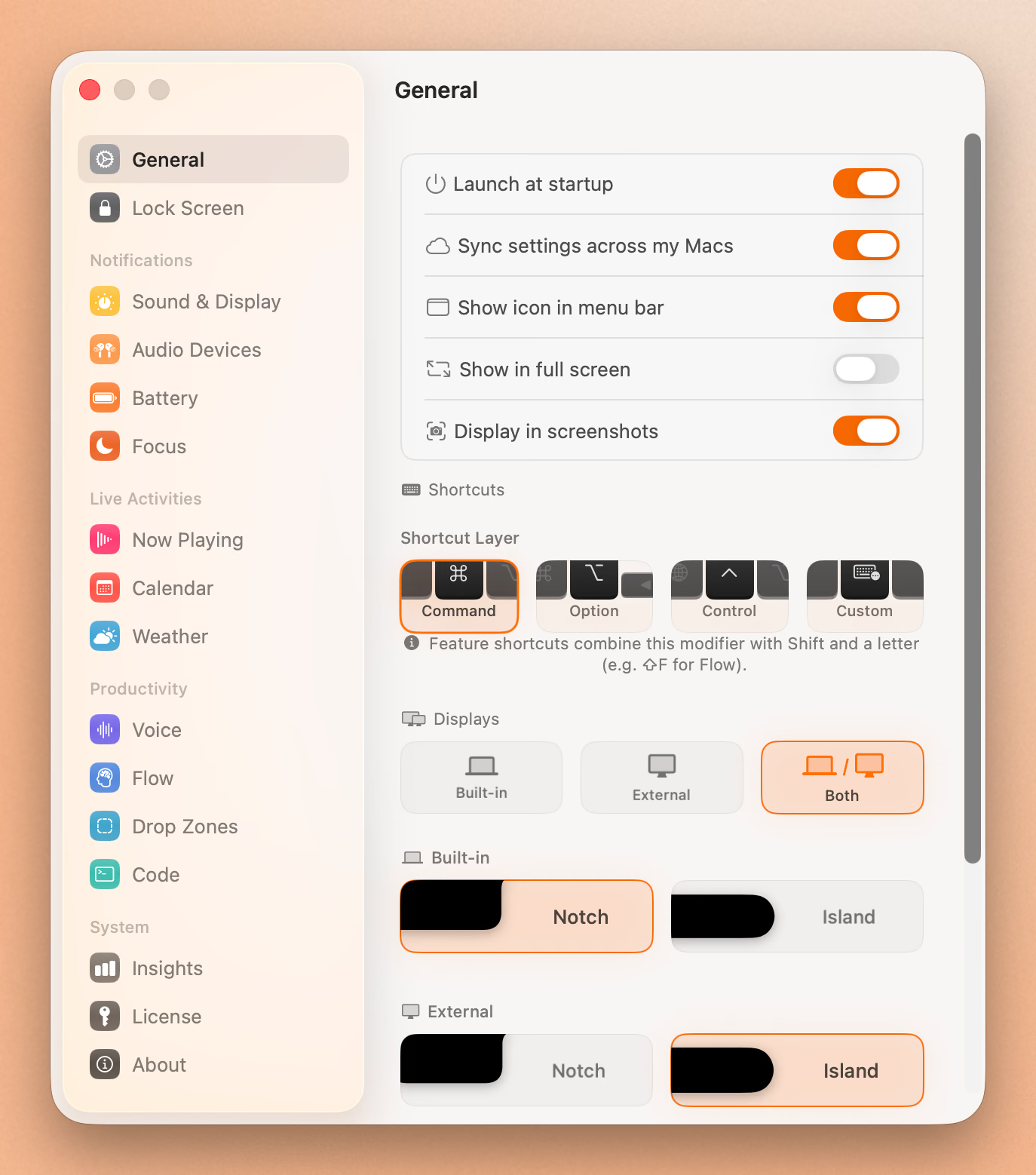
Seam takes the opposite approach: instead of hiding the notch, it transforms the notch into a Dynamic Island inspired by iPhone.
Key features:
- Volume and Brightness HUD. Replaces macOS’s floating HUD with elegant in-notch displays.
- Now Playing. Album art, track info, and playback controls for Apple Music and Spotify.
- Device Connections. Shows AirPods and Beats battery levels (left, right, and case) when they connect.
- Battery Status. Charging indicators and low battery warnings.
- Focus Mode Detection. Displays your active Focus mode without requiring extra permissions.
- Flow Timer. Pomodoro-style focus sessions.
How it works: Seam monitors system events like volume changes, Bluetooth connections, and music playback, then displays relevant information in the notch area using smooth, iOS-style animations. It only activates when something happens, so it has minimal battery impact.
What it doesn’t do: Seam doesn’t hide the notch. It leans into it. If you really can’t stand seeing the notch, Seam isn’t for you.
Price: $29 one-time purchase
Feature Comparison
| Aspect | TopNotch | Seam |
|---|---|---|
| Primary function | Hide notch | Use notch |
| Now Playing | No | Yes |
| Volume/Brightness HUD | No | Yes |
| Device battery status | No | Yes |
| Focus mode display | No | Yes |
| Timer/Pomodoro | No | Yes |
| Customization | Minimal | Minimal |
| CPU usage | Negligible | Low |
| Price | Free | $29 one-time |
| Developer | CleanShot team | Independent |
When to Choose TopNotch
TopNotch is the right choice if:
You find the notch visually distracting. Some users just can’t unsee it. If the notch breaks your concentration, hiding it removes the problem.
You prefer a dark menu bar aesthetic. Even on Macs without a notch, some users prefer the all-black menu bar look TopNotch provides.
You don’t need notch functionality. If you already have your music controls in the menu bar, battery in the status area, and don’t care about Focus modes, you’re not missing anything by hiding the notch.
You want free. TopNotch costs nothing. Hard to argue with that.
You use Dynamic Desktop wallpapers. TopNotch handles these gracefully, adjusting as your wallpaper shifts throughout the day.
Put Your Notch To Work
That black bar already takes up space. Give it music, timers, and voice typing.
Download for free
When to Choose Seam
Seam is the right choice if:
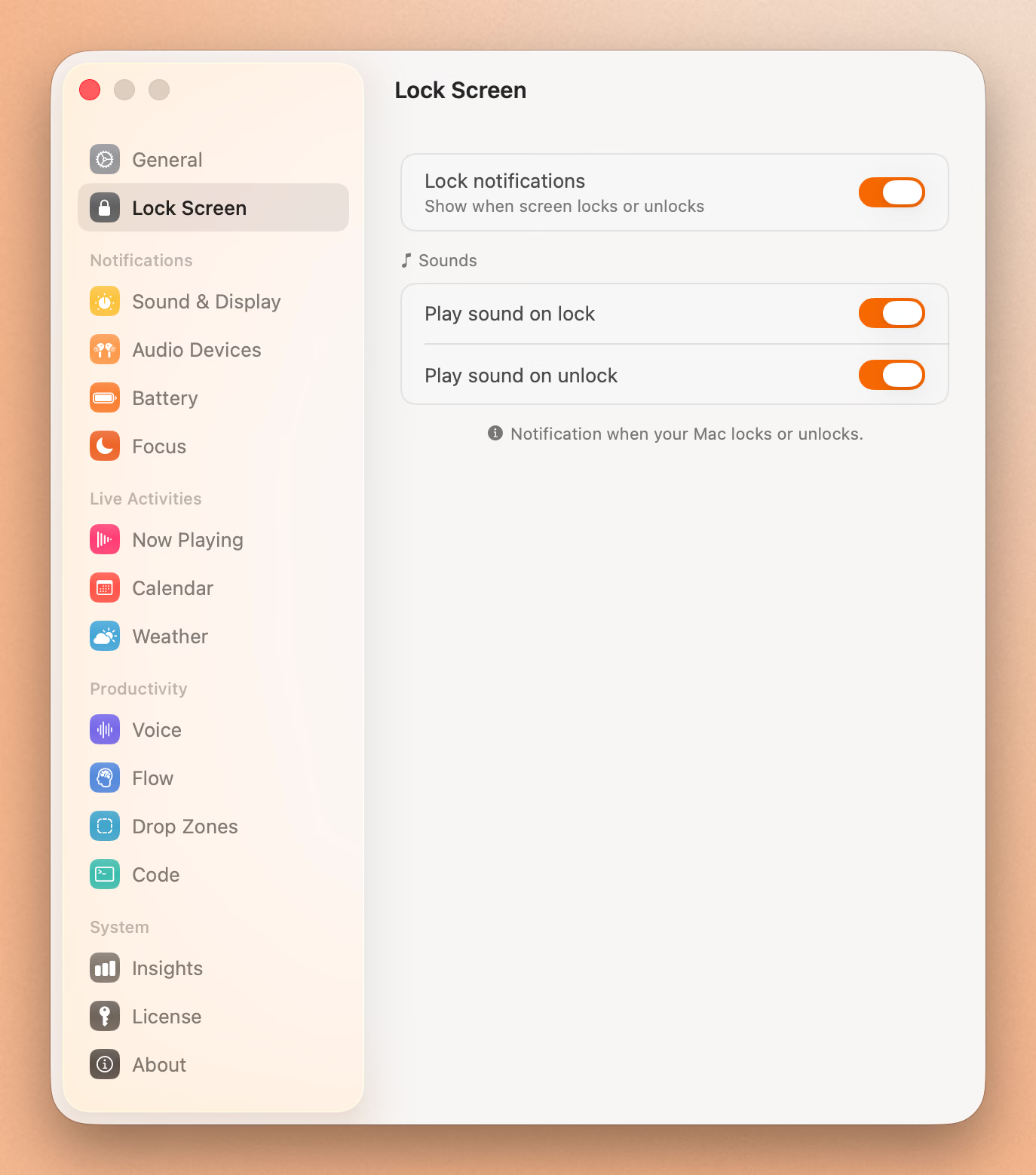
You want glanceable information. Seeing your current track, battery status, or Focus mode without clicking anything is surprisingly useful once you try it.
You dislike macOS’s floating HUDs. The volume and brightness overlays that appear mid-screen can be jarring. Seam moves them to the notch where they’re less intrusive.
You use AirPods or Beats frequently. Seam shows detailed battery levels for your earbuds (including the case) when they connect. No more guessing if your AirPods need a charge.
You want Focus mode visibility. Seeing your current Focus mode at a glance helps you stay intentional about how you’re using your Mac.
You like iOS’s Dynamic Island. If you enjoy how iPhone handles the camera cutout, Seam brings that experience to Mac.
Can You Use Both?
Technically, no. They conflict. TopNotch turns the menu bar black, while Seam needs to display content in that space. Running both would defeat the purpose of each.
However, you could alternate:
- Use TopNotch when watching full-screen video or doing focused work where you want zero distractions
- Use Seam during regular work sessions when glanceable information is helpful
macOS doesn’t make switching easy (you’d need to manually quit one and launch the other), but it’s possible if you have strong preferences for different contexts.
The Bigger Question: Do You Even Need a Notch App?
Here’s an honest take: many Mac users ignore the notch entirely and are perfectly happy. After a few days of use, your brain filters it out. The notch controversy was loudest at launch; years later, most people have forgotten about it.
You might not need either app if:
- You’ve already adjusted to the notch visually
- You don’t frequently check music/battery/device status
- You prefer keeping your system minimal and app-free
Both TopNotch and Seam are lightweight and well-built. But the most elegant solution might be no solution at all.
Our Verdict
TopNotch is the best free option for users who want the notch gone. It’s simple, effective, and comes from a trusted developer (the CleanShot team). If visual cleanliness is your priority, TopNotch delivers.
Seam is the best option for users who want the notch to earn its place on their screen. Instead of hiding dead space, you get live information that’s actually useful. The one-time $29 price is fair for what it offers.
The philosophical difference matters: TopNotch treats the notch as a problem to solve. Seam treats it as space to put to work. Neither is wrong, but your preference says something about how you use your Mac.
If you’ve read this far and you’re still not sure: start with TopNotch (it’s free). Live with a hidden notch for a week. If you find yourself wishing the notch did something instead of nothing, try Seam.
Ready to try Seam? Download Seam for Mac. One-time purchase, no subscription, minimal battery impact.
Both apps are lightweight and well-designed. You really can’t go wrong with either. It just depends on whether you want to hide your notch or use it.
See also: Seam vs Boring Notch | Best Mac Notch Apps in 2026 | Dynamic Island for Mac
Related Reading
Put Your Notch To Work
That black bar already takes up space. Give it music, timers, and voice typing.
Download for free