
How to Make Your MacBook's Notch Actually Useful
Apple put a notch on your MacBook for the FaceTime camera, then did absolutely nothing with the space around it. It just sits there, a black rectangle eating into your display. Every MacBook Pro since 2021 and every MacBook Air since the M2 has one, and by default it’s dead space.
You can fix that. Third-party apps turn the notch into a live control center for music, timers, calendar events, file management, and more. Some are free, some are paid, and they all make that camera cutout earn its screen real estate.
TL;DR: Install a notch app like Seam ($29 one-time), Boring Notch (free/open source), or NotchNook (off sale right now) to turn the MacBook notch into a Dynamic Island with music controls, timers, battery info, and quick actions.

Why Does the MacBook Have a Notch?
Apple added the notch to MacBook Pro in 2021 and MacBook Air in 2022 to shrink the display bezels while keeping the FaceTime camera. The idea: push the menu bar into the notch area and give you more usable screen space below.
On iPhone, Apple turned the equivalent hardware cutout into Dynamic Island, an interactive area that shows live activities like music, timers, and navigation. On Mac, Apple hasn’t done the same. The notch is static. Your menu bar wraps around it and that’s it.
Third-party developers saw the opportunity and built apps that bring Dynamic Island-style functionality to macOS. These apps detect the notch location, draw content around and below it, and give you glanceable information right where your eyes naturally rest: the top of the screen.
What Can a Notch App Do?
A good MacBook notch app turns that dead space into a hub for things you’d otherwise dig through menus or open separate windows to check:
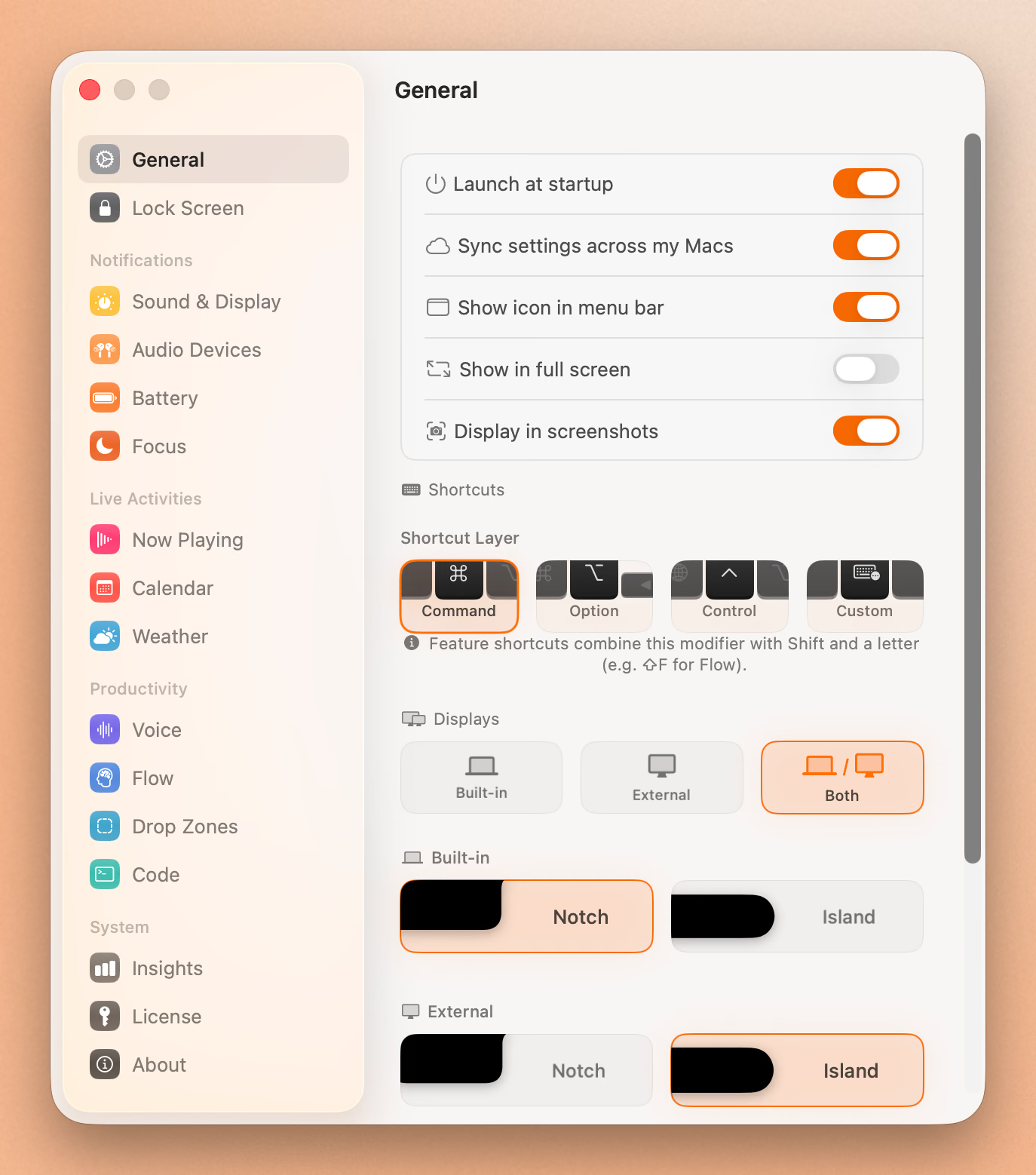
- Music controls. See what’s playing with album art. Skip tracks, play/pause, all from the notch.
- Calendar. Your next meeting is always visible. No need to click the clock or open Calendar.app.
- Focus timer. Run a Pomodoro session right in the notch. Name your task, start the timer, stay focused.
- Battery. Monitor your MacBook battery and connected devices like AirPods (left, right, case).
- Volume and brightness. Replace the default macOS HUDs with something that fits your workflow.
- File shelf. Drag files to the notch, hold them there, drop them into another app later.
- Voice-to-text. Some apps include local AI transcription so you can dictate without sending audio to the cloud.
- Device alerts. See when your AirPods or Bluetooth devices connect or disconnect.
Not every app supports every feature. Here’s how the main options compare.
Comparing MacBook Notch Apps
| Feature | Seam | Boring Notch | NotchNook |
|---|---|---|---|
| Price | $29 one-time | Free (open source) | $25 one-time or $3/mo |
| Music controls | Yes, with album art | Yes, with audio visualizer | Yes, with widgets |
| Calendar | Next event always visible | Yes | Yes (widget) |
| Focus/Pomodoro timer | Yes (Flow timer with task naming) | Yes | No |
| Voice-to-text | Yes (local AI, offline, Whisper-based) | No | No |
| File shelf / Dropzones | Yes (drag-to-notch file staging) | Yes, with AirDrop | Yes |
| Battery monitoring | Yes (MacBook + AirPods) | Yes | Yes |
| HUD replacement | Yes (volume + brightness) | Yes | No |
| Device connection alerts | Yes (AirPods/Bluetooth) | No | No |
| Works on non-notch Macs | Yes (Island mode) | Yes | Yes |
| Signed and notarized | Yes | No (unsigned) | Yes |
| Battery impact | Minimal (event-driven) | Moderate (visualizer uses CPU) | Low to moderate |
Option 1: Seam (Recommended)
Seam is a macOS app that turns the notch into a Dynamic Island-style control center. It’s event-driven, meaning it only wakes up when something actually happens: a song changes, a meeting starts, your AirPods connect. Between events, it’s idle and barely touches your battery.
What you get:
- Music. Now Playing with album art, artist, track name, and playback controls. Works with Apple Music, Spotify, and any app that uses macOS media APIs.
- Flow. A Pomodoro timer that lives in the notch. Name your current task, set a duration, and the countdown stays visible while you work.
- Voice. Local AI voice-to-text powered by Whisper. Runs entirely on your Mac, nothing sent to the cloud. Dictate into any text field.
- Calendar. Shows your next event from Apple Calendar. Glance up, see when your meeting is.
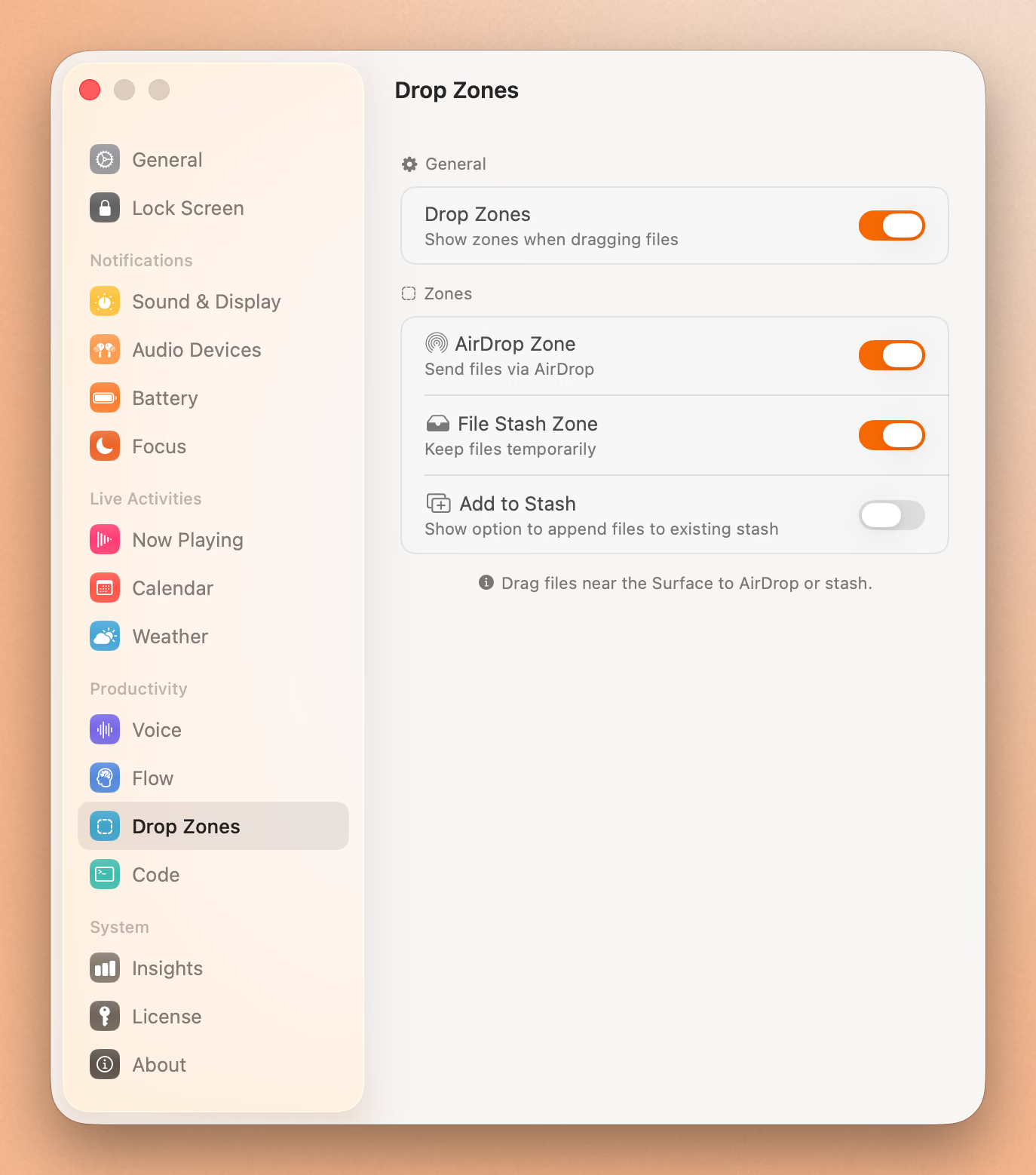
- Dropzones. Drag any file to the notch to stage it. Later, drag it out into another app. Useful for moving files between windows without juggling Finder.
- Battery. Your MacBook’s charge level, plus AirPods battery for left bud, right bud, and case individually.
- HUDs. Custom volume and brightness indicators that replace the default macOS overlays.
- Focus. Shows when a macOS Focus mode is active.
- Device. Connection alerts when AirPods or Bluetooth accessories pair.
Island mode makes Seam work on any Mac, even an iMac, Mac Mini with an external display, or an older MacBook without a notch. Instead of wrapping around the camera cutout, it creates a floating island at the top of your screen.
Price: $29 one-time. No subscription.
How to Set Up Seam
- Go to getseam.app and download the app
- Open the DMG and drag Seam to your Applications folder
- Launch Seam from Applications
- Grant Accessibility permission when prompted (System Settings > Privacy & Security > Accessibility)
- The notch activates immediately. Play a song to see it in action.
You can configure which features are active in Seam’s settings. Turn off anything you don’t need.
Option 2: Boring Notch (Free)
Boring Notch is the best free option for making the MacBook notch useful. It’s open source with 5,000+ GitHub stars and an active community.
What you get:
- Music controls with a real-time audio visualizer that pulses with your music
- Calendar and Reminders integration
- File shelf with AirDrop support
- Pomodoro timer
- macOS HUD replacement
- Clipboard monitor
- Works on non-notch Macs
Trade-offs: Boring Notch is unsigned, so macOS will block it on first launch. You’ll need to go to System Settings > Privacy & Security and click “Open Anyway.” Some users report bugs after sleep/wake cycles. The audio visualizer looks great but costs battery life when active. Disable it if battery matters to you.
How to Set Up Boring Notch
- Download from GitHub releases
- Drag to Applications
- Try to open it (macOS will block it the first time)
- Go to System Settings > Privacy & Security
- Scroll down and click “Open Anyway”
- Grant permissions as requested
Price: Free (open source)
Put Your Notch To Work
That black bar already takes up space. Give it music, timers, and voice typing.
Download for free
Option 3: NotchNook (Most Customizable)
NotchNook offers the most customization options. It has a widget system that lets you pick exactly what appears in and around the notch.
What you get:
- Widget system (Calendar, Shortcuts, Mirror, Media, and more)
- Custom color themes and sizing
- Multiple display modes
- File shelf
- Haptic feedback on supported MacBooks
- App tray for quick access
Trade-offs: More complex to configure. The widget system is powerful but takes time to set up the way you want. It was $25 one-time or $3/month, and it’s not for sale right now.
How to Set Up NotchNook
NotchNook can’t be bought right now. The lo.cafe site no longer loads, the Setapp listing is gone, and Homebrew disabled its cask on 19 September 2026. If you already have it installed, the steps are below. If not, pick Seam or Boring Notch.
- Open the app from Applications
- Launch and configure your widgets
- Adjust appearance and behavior in settings
Price: $25 one-time or $3/month (also available on Setapp)
Which Notch App Should You Pick?
Pick Seam if you want a clean, battery-friendly experience that works out of the box. Music, calendar, focus timer, voice dictation, and device monitoring in one app. $29 and done.
Pick Boring Notch if you want a free option and don’t mind some rough edges. The visualizer is fun, the file shelf is handy, and you can’t beat the price.
Pick NotchNook if you want granular control over every detail. The widget system is powerful if you’re willing to spend time configuring it.
Works on Any Mac
All three apps support Macs without a notch. If you have a pre-2021 MacBook Pro, any iMac, a Mac Mini, or a Mac Studio, you can still use these apps. They create a floating island or bar at the top of your display that functions the same way.
Seam calls this “Island mode.” Boring Notch and NotchNook have similar fallback modes. So even if your Mac doesn’t have a physical notch, you can still get the Dynamic Island experience.
Frequently Asked Questions
Can I make the MacBook notch do something useful?
Yes. Install a notch app like Seam, Boring Notch, or NotchNook. These apps turn the notch area into a live display for music, timers, calendar events, battery status, and more. Apple hasn’t added this functionality to macOS natively, but third-party apps fill the gap well.
What is the best MacBook notch app?
It depends on your priorities. Seam offers the best balance of features, battery life, and polish for $29. Boring Notch is the best free option. NotchNook offers the most customization. All three work on MacBooks with or without a notch.
Is there a free app to use the MacBook notch?
Yes. Boring Notch is free and open source. It includes music controls, a file shelf, Pomodoro timer, and HUD replacement. The trade-offs are occasional bugs and higher battery usage with the audio visualizer enabled. It’s unsigned, so you’ll need to bypass macOS Gatekeeper on first launch.
Do notch apps drain MacBook battery?
It varies by app and configuration. Seam uses an event-driven architecture, meaning it only activates when something changes (new song, meeting starts, device connects). Battery impact is minimal. Boring Notch with the visualizer active uses more CPU. NotchNook falls in between. If battery is a concern, pick an app that stays idle between events.
Related Reading
Put Your Notch To Work
That black bar already takes up space. Give it music, timers, and voice typing.
Download for free