
7 Best Mac Focus Timer & Pomodoro Apps in 2026
You sit down to work. You open your laptop. Two hours later, you’ve checked Slack fourteen times and made zero progress on the thing that matters.
The Pomodoro technique fixes this. Work for 25 minutes, take a 5-minute break, repeat. It’s simple, and decades of research back it up. But you need a timer, and not all Mac timer apps are created equal.
Some are native and light. Some are Electron wrappers that eat your battery. Some cost $40 a year to count down from 25.
We tested them all. Here’s what’s actually worth installing on your Mac.
We make Seam. It’s our pick below, so read that entry knowing who wrote it.
TL;DR: Seam puts a Pomodoro timer right in your MacBook’s notch, visible on every desktop without taking up screen space. Be Focused Pro is the best budget option at $4.99 one-time. TomatoBar is the best free, open-source pick.

What Makes a Good Mac Focus Timer?
Before the rankings, here’s what we care about:
- Always visible: Can you see the timer without switching windows?
- Native macOS: Swift app, not an Electron wrapper. Your battery will thank you.
- One-time purchase: Subscription pricing for a countdown timer feels wrong.
- Distraction blocking: Can it block apps and websites during focus sessions?
- Works in full-screen: Does the timer disappear when you go full-screen?
The 7 Best Mac Pomodoro Timer Apps
1. Seam: The Notch Timer (Our Pick)
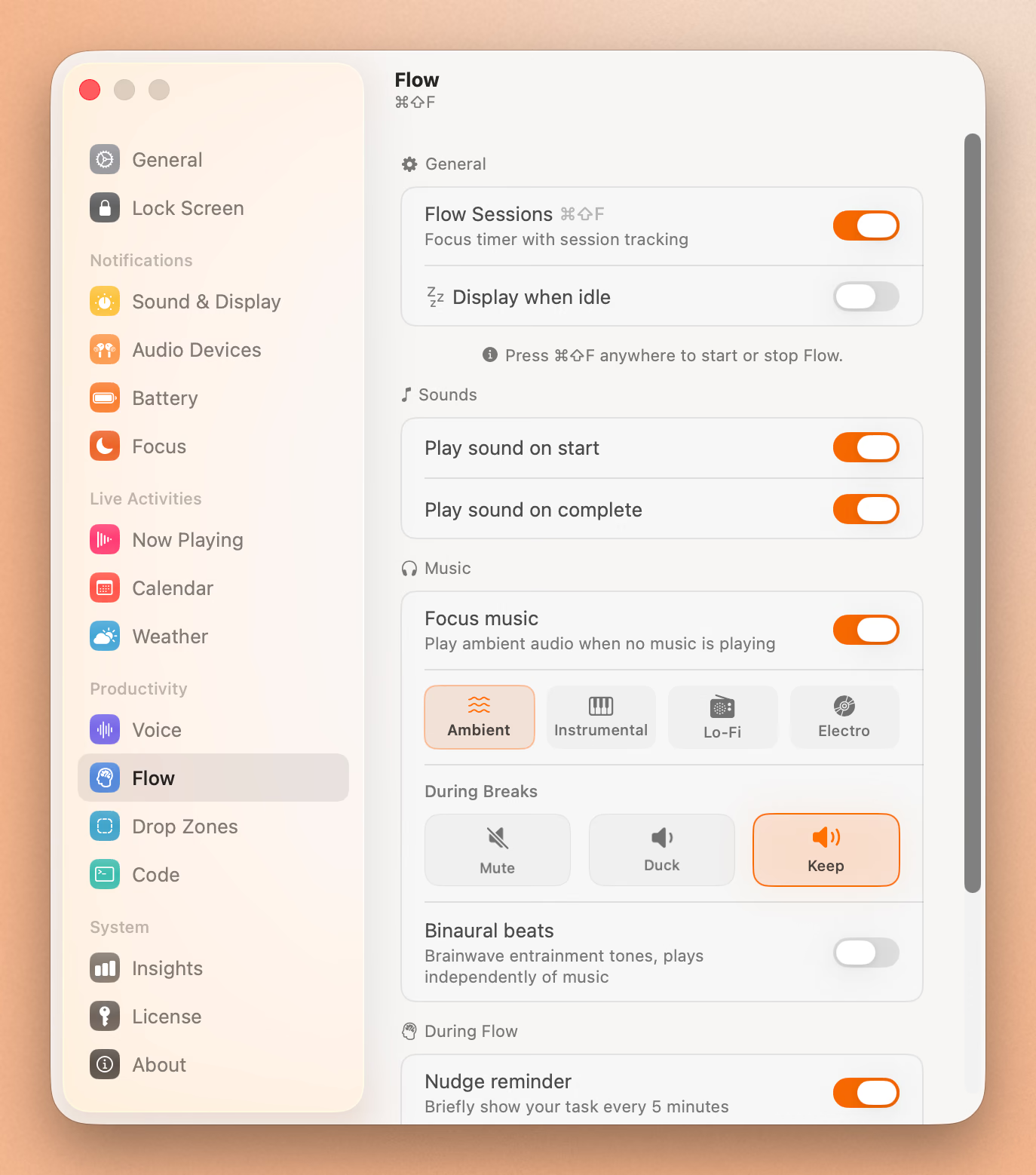
Seam turns your MacBook’s notch into a Pomodoro timer. Start a focus session and the timer appears right in the notch area, visible on every desktop and even in full-screen apps. No floating windows. No menu bar clutter. Just a timer exactly where you already look.
Why it’s #1: Name your task, hold to start, and the notch shrinks to show a compact timer. When it’s time for a break, the notch gently expands to nudge you. No intrusive notifications. No sound alerts interrupting your headphones. Just a visual cue at the top of your screen.
Most timer apps put a tiny icon in your menu bar or a window you’ll cover with other apps. Seam’s approach is different: the timer is persistent and visible without competing for screen space.
And Seam is more than a timer. You also get music controls, voice-to-text dictation, calendar events, battery monitoring, and drop zones, all in the notch. So $29 gets you 10 features, not just a countdown clock.
Price: $29 one-time (all features included) Best for: MacBook users who want a timer they can actually see while working. Platform: Native Swift, macOS only.
2. Be Focused Pro: Best Budget Option
Be Focused Pro has been on the Mac App Store for years, and for good reason. It does one thing well: Pomodoro timers with per-task tracking.
- Assign sessions to specific tasks
- Set daily goals and track progress
- Customizable work and break intervals
- Auto-starting timers between sessions
- iCloud sync between Mac and iPhone
It won’t block websites or apps. The interface looks a bit dated compared to newer competitors. And device syncing can be unreliable (a common complaint in App Store reviews). But at $4.99 one-time? Hard to argue with the value.
Price: $4.99 one-time Best for: People who want a simple, affordable Pomodoro tracker. Platform: Native macOS and iOS.
3. Session: Most Feature-Complete
Session is the premium option. It syncs across Mac, iPhone, iPad, and Apple Watch. It blocks apps and websites during focus sessions. It has analytics dashboards, calendar integration, and Slack status updates.
If you want a full-featured focus system, Session delivers. But it comes at a cost: $4.99/month or $39.99/year. For a timer app, that’s steep, especially when competitors charge once.
Some users report the UI can be confusing. The stop button hides under a ”…” menu. Setting your focus intention requires clicking a gray label that doesn’t look clickable. Small things, but they add up.
Price: Free (limited) / $39.99/year Best for: Teams or power users who want everything in one app and don’t mind subscriptions. Platform: Native Swift across all Apple platforms.
4. Flow: Best Value for Subscriptions
Flow is clean, minimal, and feels like Apple built it. The free plan is generous (no ads, no sign-in required), and the Pro plan starts at just $1.49/month.
- Menu bar timer with keyboard shortcuts
- App and website blocking (limited on free plan)
- Apple Calendar integration
- Floating timer window option
- Mac and iPhone sync
Flow is the best choice if you want blocking features without Session’s price tag. The free plan works well for casual Pomodoro users.
Price: Free / Pro from $1.49/month Best for: People who want a clean, affordable timer with blocking. Platform: Native macOS and iOS.
5. TomatoBar: Best Free & Open Source
TomatoBar is a pure menu bar timer. No frills. No accounts. No tracking. Just a timer that sits in your menu bar and counts down.
- Completely free and open source (MIT license)
- Install via Homebrew:
brew install --cask tomatobar - Global hotkey to start/stop
- JSON logging of all sessions (for data nerds)
- Tiny footprint, fully sandboxed
It won’t block apps. It won’t sync across devices. It won’t track your tasks. But it’s free, native Swift, and has 2,800+ GitHub stars. If you just want a timer and nothing else, TomatoBar is it.
Price: Free (open source) Best for: Developers and minimalists who want zero overhead. Platform: Native macOS only.
6. Focused Work: Most Timer Modes
Focused Work stands out with its variety: standard Pomodoro, Flowmodoro (flexible intervals based on how focused you feel), custom sessions, and a simple on-screen countdown.
- App and website blocking
- Session rating and reflection after each session
- Scratch pad for notes during focus
- Daily goals and statistics
- Apple Shortcuts integration
The subscription pricing ($4.99/month, $29.99/year, or $59.99 lifetime) sits between Flow and Session. Some users complain about overly persistent reminder notifications during sessions, which defeats the purpose of a focus app.
Price: Free (limited) / $29.99/year / $59.99 lifetime Best for: People who want flexibility in how they structure focus sessions. Platform: Native macOS and iOS.
7. Focus (HeyFocus): Strictest Blocker
Focus takes the opposite approach from most timer apps: it makes it impossible to cheat. Start a focus session and you cannot quit the app, visit blocked websites, or open blocked apps until the timer finishes.
“Hardcore mode” goes further. It prevents you from changing block lists or stopping the timer early. If you lack self-control (and we all do sometimes), this is the nuclear option.
The downside: no iOS companion, no analytics, and the pricing has changed several times ($19 to $99 depending on when you look). But if your problem is discipline, not features, Focus works.
Price: From $19 one-time (pricing varies) Best for: People who need enforced focus with no escape hatch. Platform: Native macOS only.
Quick Comparison
| App | Price | Always Visible | Blocking | Cross-Device | Native Swift |
|---|---|---|---|---|---|
| Seam | $29 one-time | Yes (notch) | No | No | Yes |
| Be Focused Pro | $4.99 one-time | No (menu bar) | No | Yes (iCloud) | Yes |
| Session | $39.99/year | No (window) | Yes | Yes (all Apple) | Yes |
| Flow | Free / $1.49/mo | No (menu bar) | Yes | Yes (Mac + iPhone) | Yes |
| TomatoBar | Free | No (menu bar) | No | No | Yes |
| Focused Work | $29.99/yr / $59.99 | No (window) | Yes | No | Yes |
| Focus | From $19 | No (window) | Yes (strict) | No | Yes |
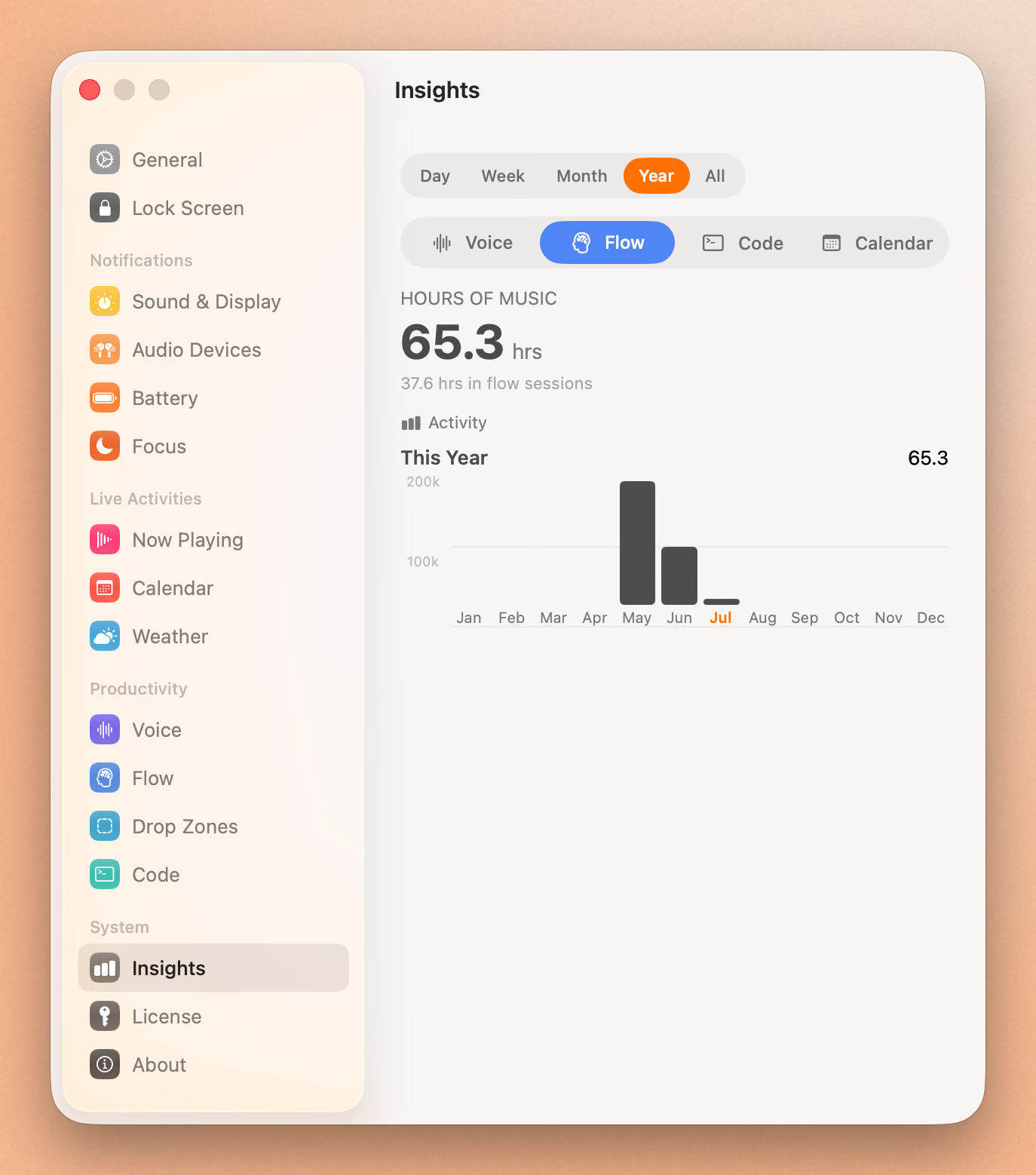
Deep Work Sessions With Built-in Breaks
Set a sprint from your notch. Work without a clock on your screen.
Download for free
Which Mac Focus Timer Should You Pick?
Want a timer you can always see? Seam. The notch timer is visible on every desktop, even in full-screen apps, without taking screen space.
On a tight budget? Be Focused Pro at $4.99 or TomatoBar for free.
Need website blocking? Flow (affordable) or Session (full-featured).
Need forced discipline? Focus with Hardcore mode.
Want one app that does everything? Seam gives you a Pomodoro timer plus music controls, voice dictation, calendar, battery, and more for a one-time $29.
Frequently Asked Questions
Does Mac have a built-in Pomodoro timer?
No. macOS includes a basic Clock app with timers and a stopwatch, but no Pomodoro-specific feature. You need a third-party app.
What is the best free Pomodoro timer for Mac?
TomatoBar is the best free option. It’s open source, native Swift, and installs via Homebrew. Flow also has a generous free plan with more features.
Is 25 or 50 minutes better for Pomodoro?
The classic technique uses 25-minute sessions. Research suggests this works well for most people, but some prefer longer sessions (50 minutes with 10-minute breaks) for deep creative work. Most apps, including Seam, let you customize the duration.
Can I use a Pomodoro timer in full-screen mode on Mac?
Most Mac timer apps disappear behind full-screen windows. Seam is the exception. Its notch timer stays visible even in full-screen apps because it lives in the hardware notch area, not a regular window.
Why use a dedicated timer app instead of a phone timer?
Phone timers require you to pick up your phone, which is a distraction. A Mac timer stays on the device you’re working on. Native Mac timers also offer features like app blocking, task tracking, and keyboard shortcuts that phone timers can’t match.
Seam is available for macOS. Download it here and try the Pomodoro timer in your notch.
Related Reading
Deep Work Sessions With Built-in Breaks
Set a sprint from your notch. Work without a clock on your screen.
Download for free