
5 Best Mac Music Controller & Now Playing Apps in 2026

You’re deep in code, writing flows, spreadsheets, whatever. A bad song comes on. You Cmd-Tab to Spotify, skip the track, then Cmd-Tab back. Except now you’ve noticed a playlist recommendation. Two minutes later, you’re browsing new releases instead of working.
This happens dozens of times a day. The fix is simple: a music controller that lives where you can see it without switching apps.
macOS has basic media keys and Control Center, but they’re either invisible or require clicking through menus. A good now playing app puts album art, track info, and playback controls somewhere glanceable, so you skip the track and stay focused.
We make Seam. It’s our pick below, so read that entry knowing who wrote it.
TL;DR: Seam puts now playing controls right in your MacBook’s notch with album art, playback buttons, and progress scrubbing. No window switching. Boring Notch is the best free alternative with an audio visualizer. If you just want a HUD overlay, MediaMate is worth a look.

What to Look for in a Mac Music Controller
Before the rankings, here’s what matters:
- Always visible: Can you see the track and hit skip without switching apps? Menu bar icons are too small. Floating windows get buried. The best controllers stay visible on every desktop.
- Works with all music apps: Apple Music, Spotify, Tidal, Deezer, YouTube Music in the browser. If it only works with one service, that’s a dealbreaker.
- Keyboard shortcuts: Global hotkeys for play/pause, skip, and volume. You shouldn’t need to click anything.
- Low battery impact: Some now playing apps poll for changes constantly. Native apps that use system media events are dramatically lighter. Electron wrappers are the worst offenders.
- Album art: This sounds cosmetic, but a track title alone doesn’t tell you much mid-playlist. Artwork gives you instant recognition.
The 5 Best Mac Music Controllers
1. Seam: Now Playing in the Notch (Our Pick)
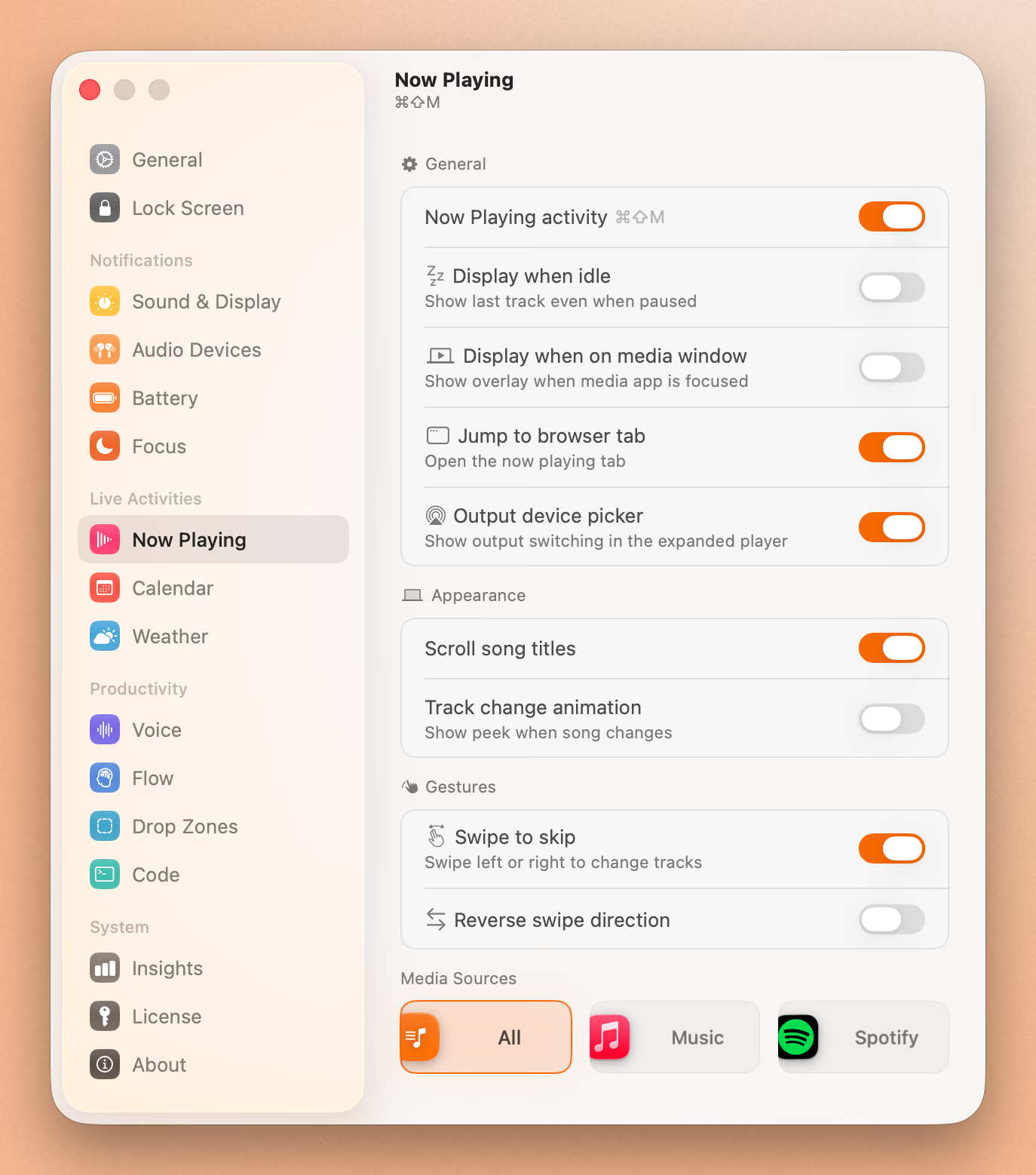
Seam turns your MacBook’s notch into a live now playing controller. When music plays, the notch expands to show album art, track title, artist, and playback controls. Skip forward, go back, play/pause, all without leaving whatever app you’re in.
Why it’s #1: The notch is always visible. You don’t need a floating window that covers content or a tiny menu bar icon you can barely read. Music info appears right at the top of your screen where your eyes naturally go. The compact view shows a small album art thumbnail and track progress. Hover or click to expand into full controls with a timeline scrubber.
Seam works with every music app on your Mac. Apple Music, Spotify, Tidal, Deezer, YouTube Music in Safari or Chrome, SoundCloud, anything that sends media info to macOS. It reads from the system’s Now Playing API, so there’s nothing to configure.
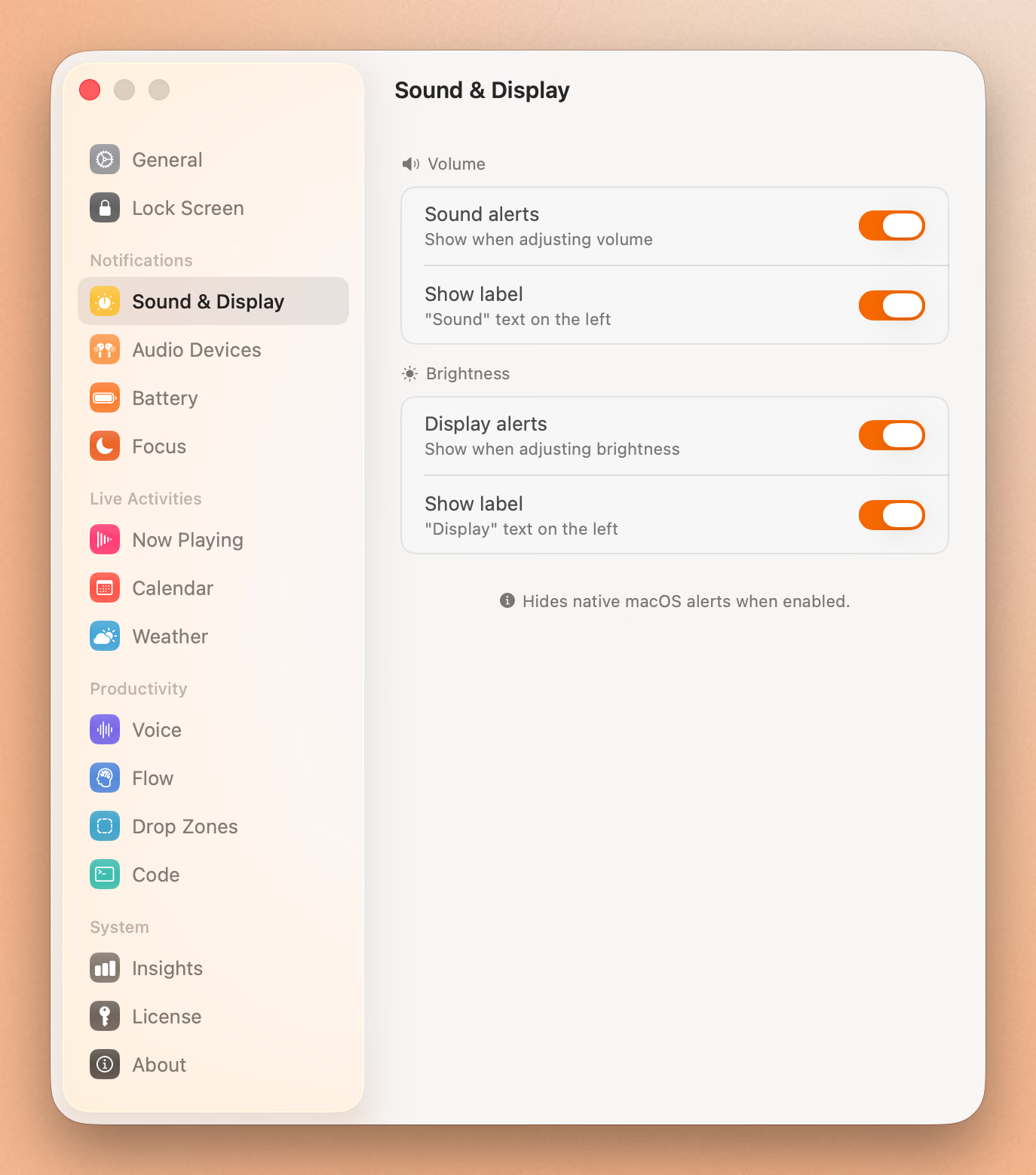
And music is just one feature. Seam also gives you a focus timer, voice-to-text, calendar events, battery indicators, volume and brightness HUDs, device connection alerts, and drag-and-drop zones. One app, $29, no subscription.
Price: $29 one-time Best for: MacBook Pro and Air users who want glanceable now playing without extra windows. Platform: Native Swift, macOS only.
2. Boring Notch: Best Free Option
Boring Notch is an open-source notch app with solid music features. It shows now playing info in the notch area with an audio visualizer that reacts to your music in real time.
The visualizer is the standout feature. It looks great and gives the notch a sense of life. You also get play/pause and skip controls, album art display, and support for most music apps through the system media API.
The tradeoff is battery life. The audio visualizer runs continuously while music plays, and users report higher energy usage compared to apps that only update on track changes. RAM usage can climb too, especially with the visualizer active. Since it’s unsigned, you’ll need to allow it through macOS Gatekeeper in System Settings.
Still, for free and open-source? It’s impressive. If you want a music controller without spending money, start here.
Price: Free (open-source) Best for: Users who want a free now playing widget with visual flair. Platform: macOS (unsigned, requires Gatekeeper bypass).
3. MediaMate: Best HUD Replacement
MediaMate replaces the default macOS volume and brightness HUDs with a polished overlay that includes now playing info. When you press a media key, a HUD pops up showing the current track with album art, alongside your volume or brightness level.
It’s a different approach than a persistent controller. You don’t see music info at all times. Instead, it appears briefly whenever you interact with media keys. For people who find persistent widgets distracting, this works well.
MediaMate also shows now playing info when you change tracks. The HUD appears for a few seconds, then fades away. The design is clean and feels native to macOS. It supports Spotify, Apple Music, and other apps that use the system media framework.
The downside: there’s no persistent view. If you want to check what’s playing without pressing a key, you can’t. It’s reactive, not proactive. And there’s no timeline scrubbing or progress indicator.
Price: Free Best for: People who want a better-looking HUD with now playing info. Platform: Native macOS.
4. NepTunes: Lightweight Menu Bar Controller
NepTunes puts a small now playing display in your menu bar. It shows the track title and artist, and clicking it reveals controls for play/pause, skip, and a link to the current track.
It’s minimal by design. No album art in the menu bar (too small to be useful). No visualizers. No expanded views. Just text showing what’s playing and basic controls on click.
NepTunes supports Apple Music and Spotify. It also integrates with Last.fm for scrobbling, which is a nice touch if you track your listening history. The app is open-source and hasn’t been updated recently, but it still works on current macOS versions.
For users who want something dead lightweight with zero visual footprint beyond a menu bar item, NepTunes fills that role.
Price: Free (open-source) Best for: Minimalists who just want track info in the menu bar. Platform: Native macOS.
5. Built-in macOS: Control Center & Media Keys
You already have a music controller on your Mac. The media keys (F7, F8, F9) handle previous, play/pause, and next. Control Center in the menu bar shows a Now Playing widget with album art and controls. On older MacBooks, the Touch Bar showed now playing info too.
So why isn’t this higher on the list? Visibility. The media keys work great, but they don’t show you what’s playing. Control Center requires clicking the menu bar icon, then clicking the Now Playing section. That’s two clicks to see a track name. And the widget disappears the moment you click anywhere else.
There’s also no persistent now playing indicator. Nothing tells you at a glance that music is playing, what track it is, or how far along you are. You have to actively check.
For people who rarely skip tracks or check what’s playing, the built-in controls are fine. But if you switch songs frequently or want a glanceable now playing display, a dedicated app is worth it.
Price: Free (built into macOS) Best for: People who mostly just press play and forget about it. Platform: macOS.
Control Your Music Without Switching Apps
Skip, pause, see what's playing. Without leaving what you're working on.
Download for free
Comparison Table
| App | Price | Persistent Display | Album Art | All Music Apps | Battery Impact | Open Source |
|---|---|---|---|---|---|---|
| Seam | $29 one-time | Yes (notch) | Yes | Yes | Low | No |
| Boring Notch | Free | Yes (notch) | Yes | Yes | Medium-High | Yes |
| MediaMate | Free | No (HUD only) | Yes | Yes | Low | No |
| NepTunes | Free | Yes (menu bar) | No | Apple Music, Spotify | Very Low | Yes |
| macOS Built-in | Free | No | Yes (in Control Center) | Yes | None | N/A |
Which One Should You Pick?
If you have a MacBook with a notch and want the best now playing experience, Seam is the clear choice. Music info lives in the notch, always visible, never covering your content. Plus you get a full suite of productivity features for $29.
If you want something free, Boring Notch gives you a solid now playing widget with a cool audio visualizer. Just keep an eye on battery if you’re on the go.
If you prefer minimal UI, MediaMate’s HUD approach keeps things out of the way until you need them. NepTunes is even lighter if you just want text in the menu bar.
If you never think about it, the built-in macOS controls work. Press play, press skip, move on.
The real test is simple: how often do you Cmd-Tab to your music app? If the answer is “multiple times a day,” any of these tools will save you that context switch. And for most MacBook users, putting music controls in the notch with Seam is the most natural fit.
Related Reading
Control Your Music Without Switching Apps
Skip, pause, see what's playing. Without leaving what you're working on.
Download for free