
Mac Voice Typing: Dictation vs Third-Party Apps (2026)
Your Mac has had voice typing built in for years. Apple calls it Dictation, and it lives in System Settings. But if you’ve actually tried using it for real work, you’ve probably noticed the limits pretty fast: it stops listening after a few seconds of silence, it needs the internet on older Macs, and there’s almost no visual feedback while it’s recording.
Third-party dictation apps have caught up and passed Apple’s built-in option. They run local AI models, work offline, and can type text into any app on your Mac. Some are free. Most are under $15.
This guide covers how macOS Dictation works, where it falls short, and which third-party apps are worth installing in 2026.
TL;DR: macOS built-in Dictation is fine for quick sentences but breaks down for anything longer. Seam gives you the best combination of speed, low CPU usage, and visual feedback, all for a one-time $29. If you want a dedicated dictation-only app, VoiceInk is solid and open source.

How macOS Built-in Dictation Works
Apple’s Dictation is already on your Mac. Here’s how to turn it on:
- Open System Settings > Keyboard
- Scroll down to Dictation and toggle it on
- Choose your language and shortcut key (default is pressing the Fn key twice)
Once enabled, double-tap Fn in any text field and start talking. Your words appear as text. Tap Fn again (or click Done) to stop.
On Apple Silicon Macs running macOS Sonoma or later, Dictation processes speech on-device. Older Intel Macs send audio to Apple’s servers, which means you need an internet connection and your voice data leaves your machine.
What Built-in Dictation Does Well
- Free and pre-installed. No download, no account, no setup beyond flipping a toggle.
- Works in most apps. Anywhere you can type, you can dictate.
- On-device on Apple Silicon. If you have an M1 or later, speech processing stays local.
- Punctuation commands. Say “period,” “comma,” or “new paragraph” and it inserts them.
Where Built-in Dictation Falls Short
Here’s where things get frustrating.
It stops listening after silence. If you pause for more than a few seconds to think, Dictation shuts off. You have to reactivate it and pick up where you left off. This makes it unusable for composing anything longer than a quick text message.
No visual feedback. There’s a tiny microphone icon near the cursor, but it’s easy to miss. You’ll catch yourself talking to a text field that stopped listening 10 seconds ago. There’s no waveform, no pulsing indicator, nothing that clearly shows “I’m recording right now.”
Limited formatting. You can’t dictate bold text, headings, or bullet points. What you say is what you get, plain text only.
Accuracy drops with background noise. In a quiet room, it’s decent. Add a fan, music, or other people talking and error rates climb fast.
No offline on Intel Macs. If you’re on an older MacBook without Apple Silicon, Dictation requires an internet connection. No Wi-Fi, no dictation.
No translation. You can only dictate in one language at a time. There’s no way to speak in English and have it type in French or German.
Common macOS Dictation Problems
If you’ve searched for “mac dictation not working,” you’re not alone. These are the issues people hit most often:
- Dictation keeps turning off. Usually caused by the auto-stop-on-silence behavior. There’s no setting to disable this.
- Words are missing or wrong. Accuracy depends heavily on microphone quality and ambient noise. The built-in MacBook mic is adequate but not great.
- Dictation unavailable offline (Intel). Only Apple Silicon Macs get local processing. Intel users are out of luck without internet.
- Language switching is manual. You have to go into System Settings to change your dictation language. There’s no quick toggle.
- No way to edit while dictating. You can’t select text or move your cursor with voice commands during dictation (unlike iOS, which has some limited voice control).
If these problems sound familiar, a third-party app will fix most of them.
Best Third-Party Voice Typing Apps for Mac
We tested the major options. Here’s how they rank for daily voice typing use.
1. Seam: Voice Typing That Lives in Your Notch
Seam turns your MacBook Pro’s notch into a Dynamic Island-style control center. One of its features is voice-to-text powered by local AI models running on Apple Silicon.
How it works: Hold a keyboard shortcut (configurable, default is Fn), speak, release. Your words appear wherever your cursor is. That’s the entire workflow.
Why it ranks first:
- Visual recording indicator. A pulsing animation appears right in the notch while you’re recording. You always know when it’s listening. This is the single biggest quality-of-life improvement over built-in Dictation.
- Low CPU usage. Seam uses roughly 12% CPU during active transcription. Most competitors use 40-50%. Your fans stay quiet and your battery lasts longer.
- Works offline, always. The AI model runs entirely on your Mac. No internet required. No audio data ever leaves your machine.
- Works in any app. Slack, VS Code, Notion, Mail, Terminal. Anywhere you can type.
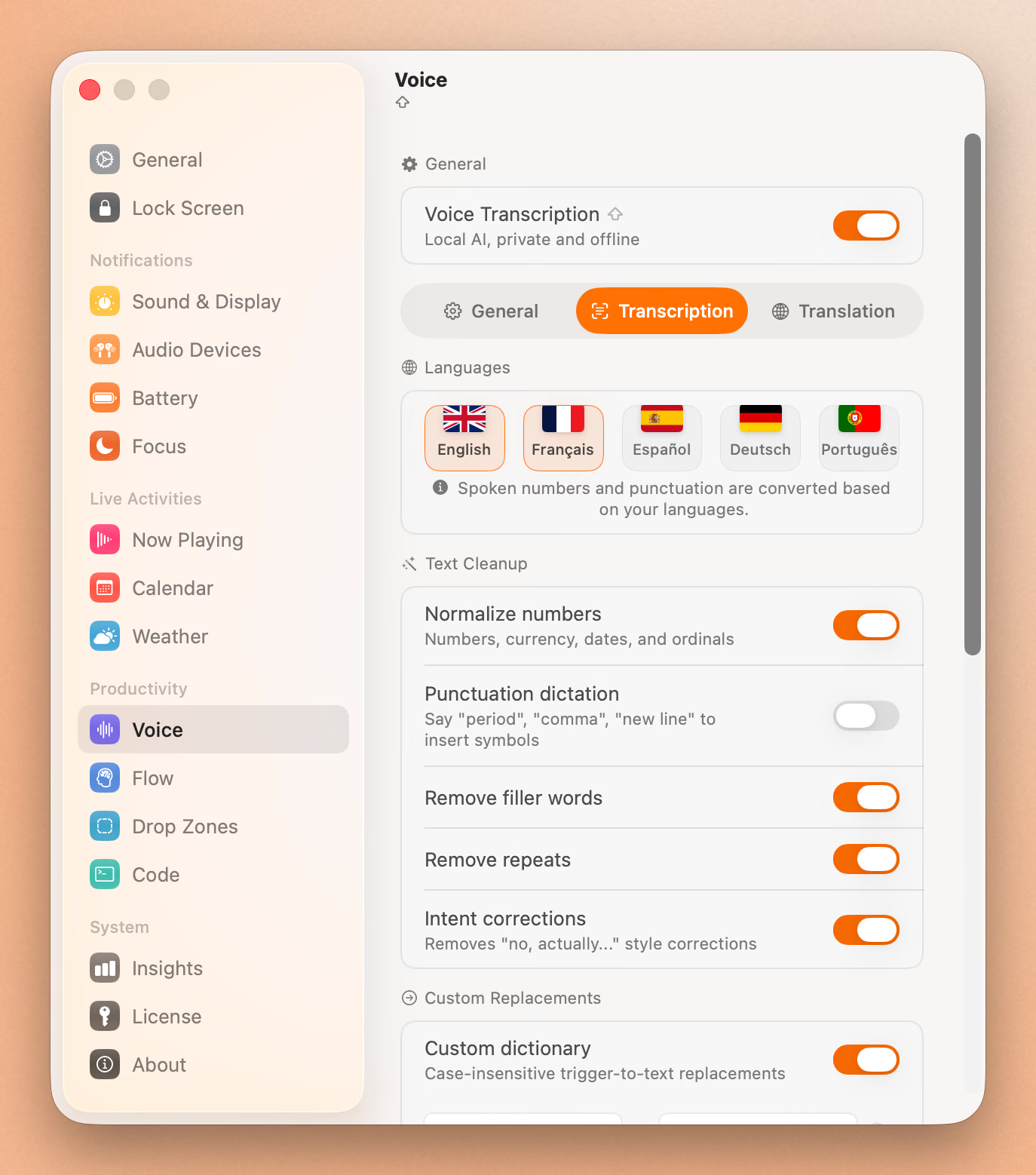
- Live translation. Speak in English, and Seam types in French, German, Spanish, or dozens of other languages. Built in, no extra setup.
- It learns your words. Correct a name after dictating and Seam keeps the correction, on your Mac. The section below covers how.
- One-time price. $29. No subscription. No annual renewal.
Seam is more than just dictation. It also gives you music controls, a focus timer, calendar events, battery monitoring, and drag-and-drop zones, all in the notch. But if you’re here for voice typing specifically, it’s the best option we’ve tested.
Price: $29 one-time Requires: macOS 14+, Apple Silicon
2. Superwhisper: Powerful but Heavy
Superwhisper is a dedicated dictation app built on OpenAI’s Whisper model. It offers multiple model sizes (tiny, small, medium, large) so you can trade accuracy for speed.
Strengths:
- Multiple Whisper model sizes to choose from
- Meeting recording mode for transcribing calls
- AI text cleanup to fix grammar and remove filler words
- 100% local processing
Weaknesses:
- 50.9% CPU during active dictation. That’s 4x what Seam uses.
- $8.49/month or $249.99 lifetime. Expensive for dictation alone.
- No visual indicator in the notch or menu bar during recording.
Superwhisper is a solid app if you need meeting transcription alongside regular dictation. But for pure voice typing, the CPU usage and subscription pricing are hard to justify.
Price: $8.49/month or $249.99 lifetime
3. Wispr Flow: AI-Powered Dictation with Context
Wispr Flow takes a different approach. It uses AI to understand the context of where you’re typing and adjusts its output accordingly. Dictating into an email produces different formatting than dictating into a code comment.
Strengths:
- Context-aware output formatting
- Good accuracy with natural speech patterns
- Clean, minimal interface
Weaknesses:
- $10/month subscription
- Requires internet for some AI features (the context-awareness part uses cloud processing)
- Less control over the raw transcription output
Wispr Flow is interesting if you want your dictation to feel more like an AI writing assistant than a pure transcription tool. But the subscription and partial cloud dependency are downsides.
Price: $10/month
4. MacWhisper: Best for Audio File Transcription
MacWhisper is built for a different use case. Instead of real-time dictation, it transcribes audio files. Drop in a podcast episode, meeting recording, or voice memo and get a text transcript.
Strengths:
- Excellent batch transcription of audio files
- Multiple export formats (TXT, SRT, VTT)
- One-time purchase
- Runs locally with Whisper models
Weaknesses:
- Not designed for real-time voice typing
- No system-wide dictation (you work inside the MacWhisper app)
- The free tier is limited to the tiny model
If your main need is transcribing existing audio files rather than live dictation, MacWhisper is the right tool. For voice typing while you work, look at the other options.
Price: Free (tiny model) / $29.99 Pro (all models)
5. VoiceInk: Lightweight and Open Source
VoiceInk is an open-source dictation app that focuses on doing one thing well. It’s lighter than Superwhisper, cheaper, and you can inspect every line of code on GitHub.
Strengths:
- Open source, fully auditable
- Works system-wide in any app
- 100+ languages
- AI text cleanup option
- 100% local, offline processing
Weaknesses:
- Higher CPU usage than Seam during transcription
- No visual recording indicator in the notch
- Smaller community than some competitors
VoiceInk is the best choice if open source matters to you and you want a dedicated dictation app you can own forever.
Price: $25 (1 Mac) / $39 (2 Macs) / $49 (3 Macs), one-time
Comparison Table
| Feature | macOS Dictation | Seam | Superwhisper | Wispr Flow | MacWhisper | VoiceInk |
|---|---|---|---|---|---|---|
| Price | Free | $29 once | $8.49/mo | $10/mo | $29.99 once | $25 once |
| Subscription | No | No | Yes | Yes | No | No |
| Offline | Apple Silicon only | Yes | Yes | Partial | Yes | Yes |
| CPU Usage | Low | ~12% | ~51% | Moderate | N/A | Moderate |
| Visual Feedback | Minimal | Notch indicator | None | Minimal | N/A | None |
| Works in Any App | Yes | Yes | Yes | Yes | No | Yes |
| Translation | No | Yes | No | No | No | No |
| Audio File Transcription | No | No | No | No | Yes | No |
| Custom Vocabulary | No | Yes | Yes | Yes | No | Yes |
| Learns Your Corrections | No | Yes (on device) | No (by hand) | Yes (cloud) | N/A | No (by hand) |
| Open Source | No | No | No | No | No | Yes |
Type 4x Faster With Your Voice
Dictate anything, anywhere on your Mac. Private, instant, on-device.
Download for free
Teaching Your Mac Your Own Words
Speech models are trained on the words everybody says. Your working day is full of the words almost nobody says: your own name, your company, the tools you open every morning. A model that has never seen “Supabase” will hear “super base” today, tomorrow, and in a year.
Most apps hand you a list to fill in. Superwhisper has a vocabulary panel, VoiceInk has word replacements, and both wait for you to type every entry.
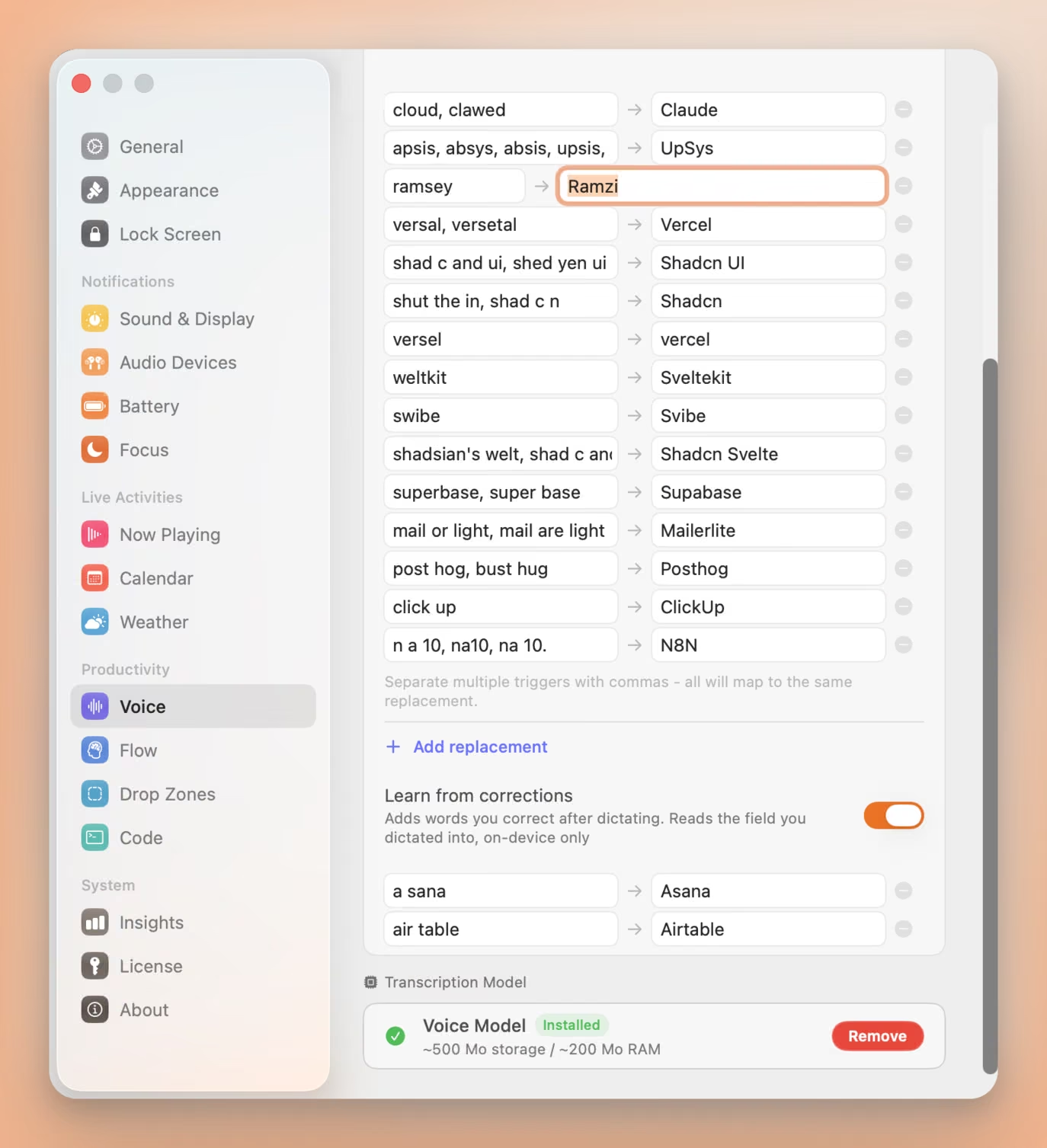
Seam watches the one thing you already do. Dictate “ramsey”, type “Ramzi” over it, and the pair is learned. Say it again next week and it arrives spelled right. You paid for that correction once.
Three things make it safe to leave switched on:
- One field, on your Mac. Seam compares the text box you dictated into against what it inserted, keeps the word pair, and forgets the rest. The field is never stored, never logged, never sent anywhere.
- One-for-one swaps only. A word you replaced with another word gets learned. Rewrites, insertions and deletions are skipped, because a wrong entry costs you more than a missed one.
- A veto, three seconds wide. Each new pair appears in the notch with an X. Press it and the word is dropped and blocklisted, so it is never learned twice.
You can still type entries by hand, and one line covers every way a word gets misheard: “shad c and ui, shed yen ui” both land on “Shadcn UI”.
Two limits worth knowing. Terminals and a few Electron apps keep their text away from macOS, so nothing is learned there. And corrections made much later, after you have left the field and come back, fall outside the window.
Wispr Flow learns from corrections too, and syncs those words across your devices through its servers. Seam does the comparison on your Mac and keeps the result there.
How to Set Up Voice Typing in Seam
Getting started takes about two minutes.
- Download Seam from getseam.app. Install it by dragging to Applications.
- Grant microphone access. On first launch, macOS will ask for microphone permission. Click Allow.
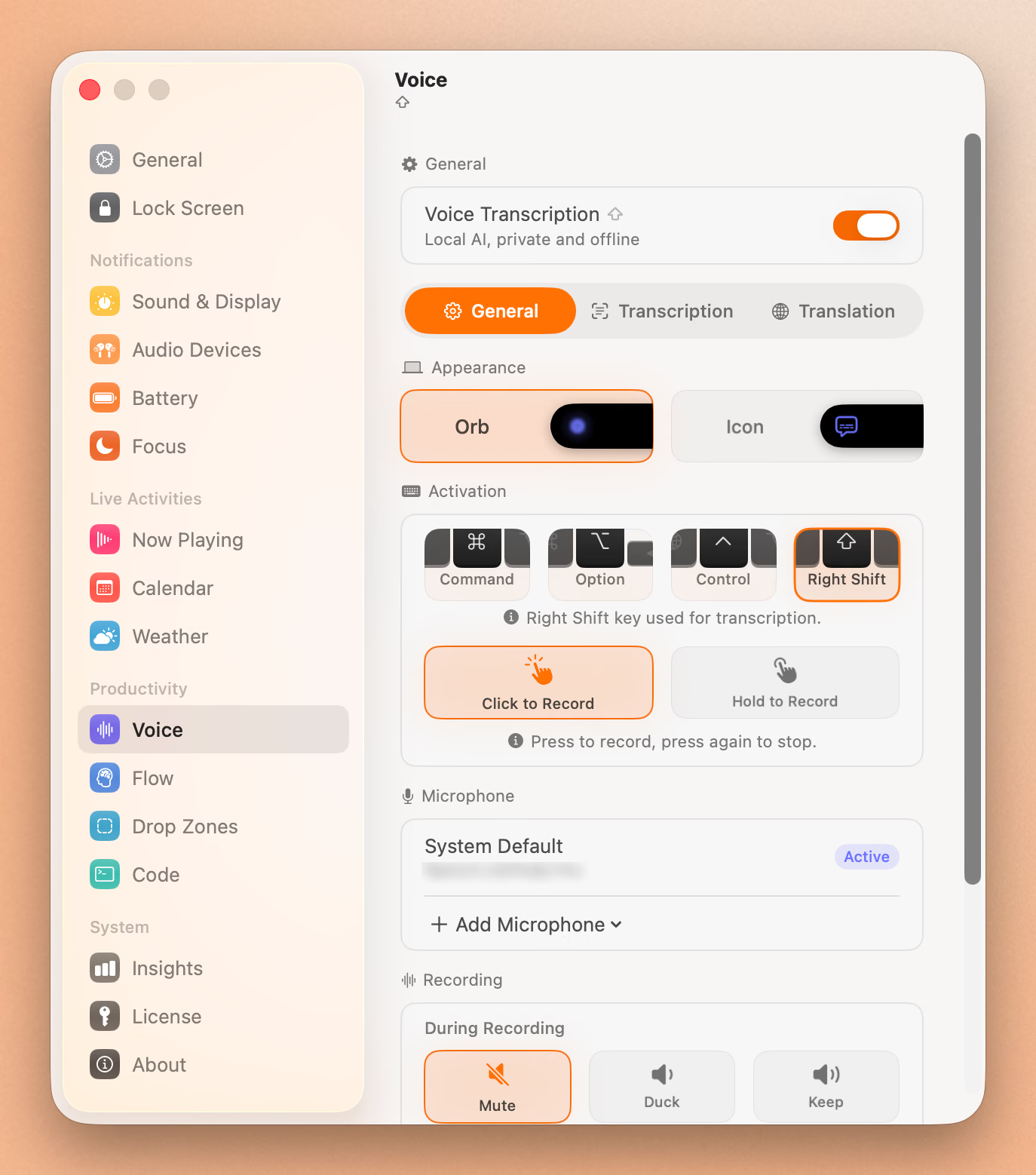
- Open Seam’s settings and go to the Voice section.
- Download a speech model. Seam will prompt you to download a local AI model. Pick the recommended one for your Mac. The download is around 100-200 MB depending on the model.
- Set your shortcut. The default is holding the Fn key. You can change this to any key combination you prefer.
- Start dictating. Hold your shortcut, speak, release. Text appears at your cursor position. The notch shows a pulsing indicator while recording so you always know it’s active.
Optional: Set up translation. In Voice settings, turn on translation and pick your target language. Now when you speak in English, Seam types in your chosen language. This works entirely offline.
Leave “Learn from corrections” on. It sits under Custom Replacements in Voice settings and is on out of the box. Every name you fix after dictating gets remembered, so week two is noticeably cleaner than week one.
Which App Should You Use?
If you rarely dictate and just need an occasional sentence: macOS built-in Dictation is fine. It’s free and already installed.
If you dictate regularly while writing emails, docs, or messages: seam. Low CPU, visual feedback, offline, and $29 once. The notch indicator alone is worth switching for.
If you want open source: VoiceInk. Transparent, affordable, and accurate.
If you need meeting transcription: Superwhisper or MacWhisper, depending on whether you need real-time recording or batch file processing.
If you want AI-assisted writing, not just transcription: Wispr Flow. Be prepared for the $10/month subscription.
For most Mac users who want fast, private, affordable voice typing that works everywhere, Seam is the clearest choice in 2026.
Related Reading
Type 4x Faster With Your Voice
Dictate anything, anywhere on your Mac. Private, instant, on-device.
Download for free