
Seam vs MediaMate: More Than Music Controls (2026)
Looking for a MediaMate alternative on your Mac? Both Seam and MediaMate are macOS-only apps that replace the dated system HUDs with something beautiful. But while MediaMate focuses exclusively on media controls, Seam takes your MacBook’s notch further. Here’s how these two Mac apps compare.

TL;DR
MediaMate is an excellent choice if you only want better volume/brightness HUDs and Now Playing controls. It’s polished, affordable, and works on any Mac.
Seam does everything MediaMate does for HUDs, plus adds device connections (AirPods battery levels), Focus mode detection, flow timers, and more. If you want your notch to be a productivity hub, not just a media controller, Seam is the better investment.
Quick Comparison
| Feature | Seam | MediaMate |
|---|---|---|
| Price | $29 one-time | ~$7 one-time |
| Volume/Brightness HUD | Yes | Yes |
| Now Playing | Yes | Yes |
| Notch Integration | All Macs (macOS 14+) | All Macs (notch + non-notch) |
| Device Connections | Yes (AirPods L/R/Case) | No |
| Focus Mode Detection | Yes (no permissions) | Hides HUDs only |
| Battery Indicators | Yes | No |
| Flow/Timer | Yes | No |
| Theme Options | Minimal (native look) | 4 themes |
Media Features: How They Compare
Now Playing
Both apps show what’s currently playing, but with different philosophies.
MediaMate offers the Now Playing HUD as its flagship feature. Hover over the notch and it expands to show album art, track info, and playback controls. You can scrub through tracks, skip forward, and pause, all without leaving your current window. It works with Apple Music, Spotify, Chrome, and most other media apps.
MediaMate gives you four visual themes: iOS-styled, circular, notch, and classic. You can customize timing (how long the HUD stays visible), triggers (on track change, play/pause, or volume change), and even exclude specific apps.
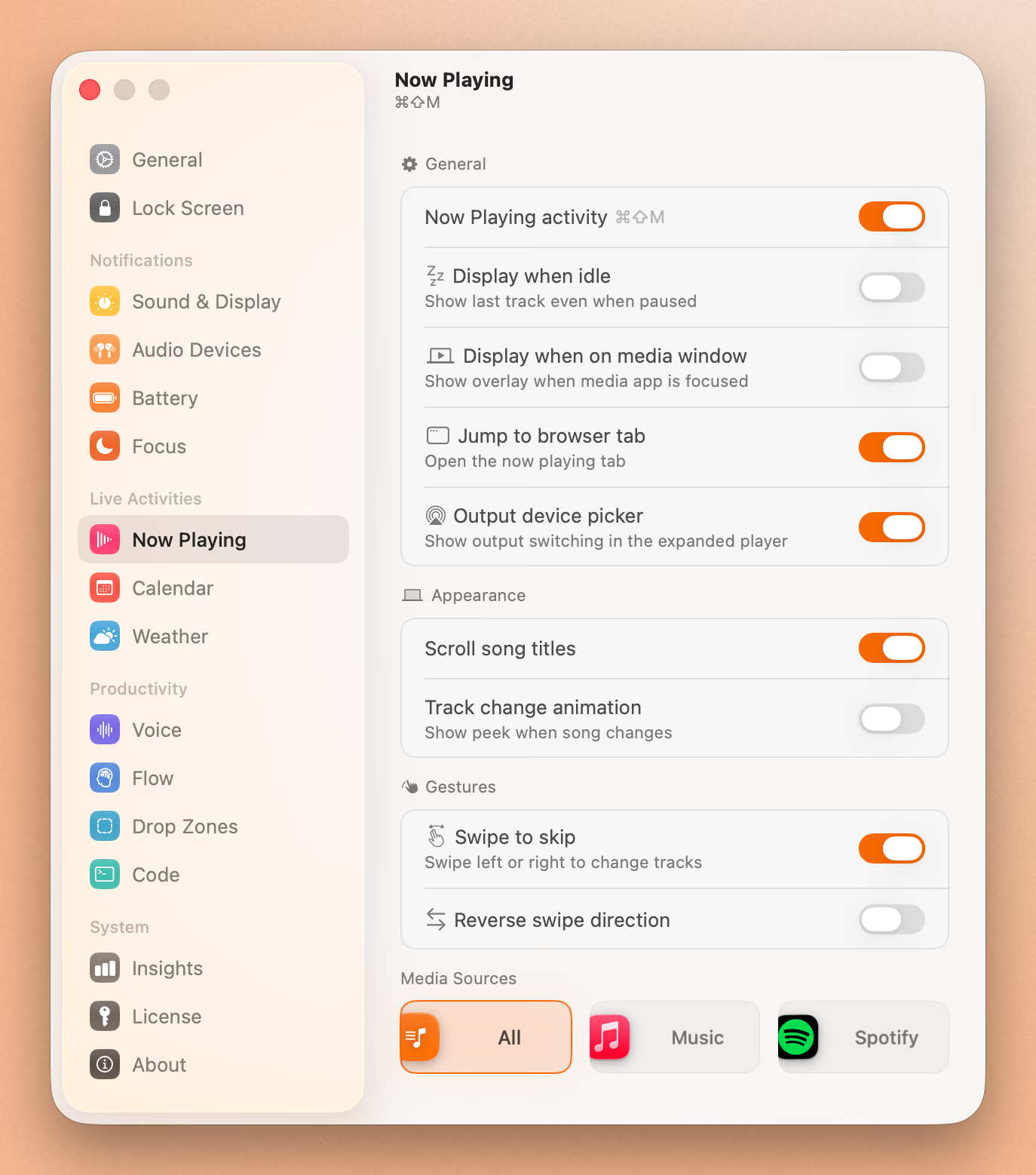
Seam takes a different approach. Now Playing appears in the notch with album art and track info, designed to be glanceable rather than interactive. The focus is on awareness. You see what’s playing without needing to hover or click. Playback controls appear when you expand the notch.
Where Seam stands out is the audio visualizer and dynamic color theming that extracts colors from album artwork. Your notch subtly matches the mood of what you’re listening to.
Verdict: MediaMate offers more Now Playing customization. Seam offers a more integrated visual experience.
Volume and Brightness HUDs
This is where both apps started, and both do it well.
MediaMate replaces the chunky macOS volume and brightness overlays with sleek alternatives. The notch theme expands the notch slightly to show a slider. Other themes show floating indicators in various styles. You also get keyboard brightness controls, which macOS handles poorly by default.
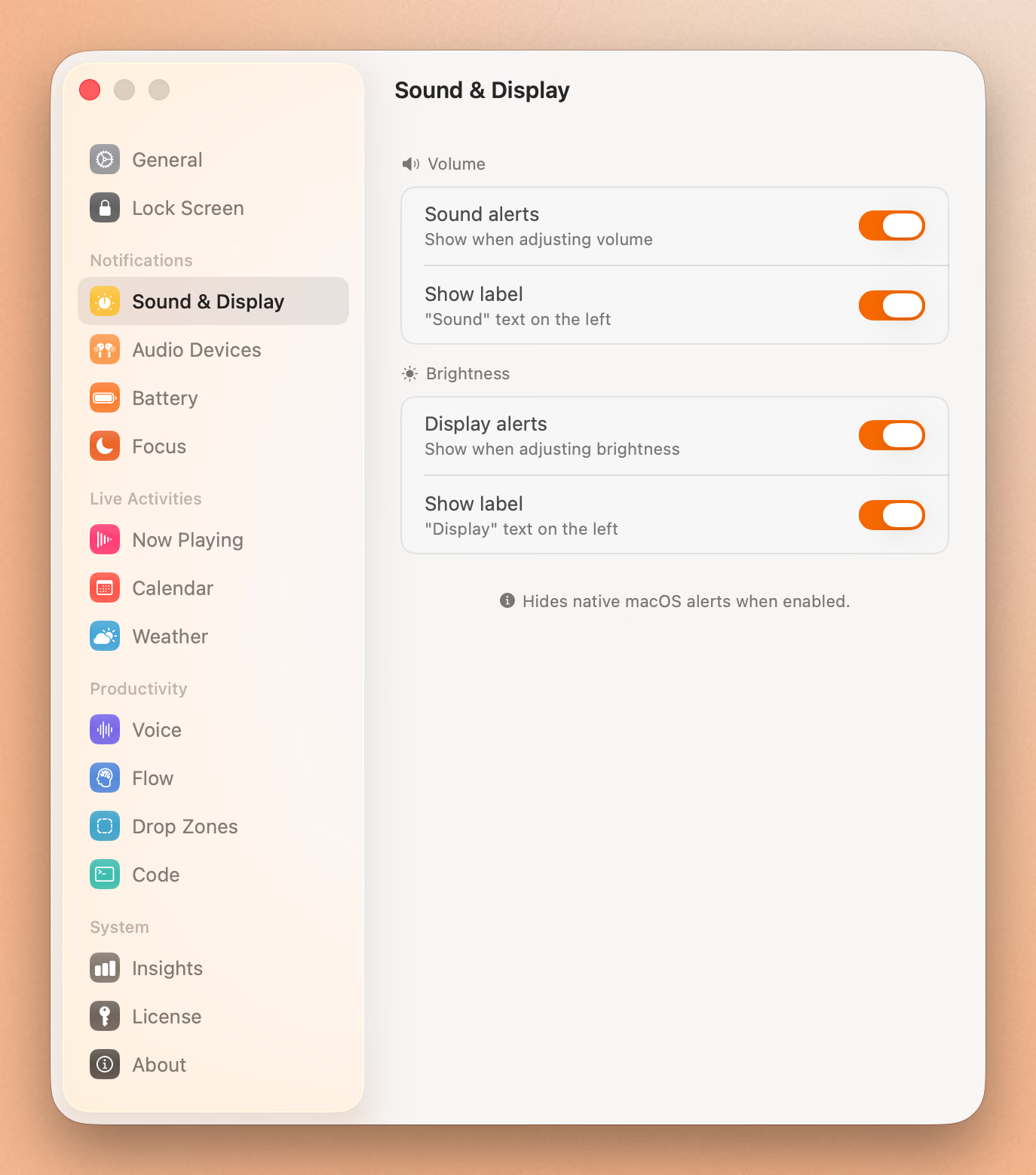
Seam suppresses the native macOS OSD entirely (no double overlays) and shows volume/brightness changes in the notch. It only activates when you actually change something, so there’s minimal battery impact.
Verdict: Tie. Both apps handle HUDs well. MediaMate offers more visual options; Seam offers cleaner system integration.
What Else Do You Get?
Here’s where the apps diverge significantly.
Device Connections
Seam shows AirPods connections with detailed battery levels: left earbud, right earbud, and case. When you pop open your AirPods case near your Mac, Seam displays the connection with a 3D animation and all three battery percentages. Beats headphones get SF Symbol icons with battery status.
MediaMate doesn’t track device connections. It’s focused purely on media.
Focus Mode Detection
Seam detects when you turn on a Focus mode (Do Not Disturb, Work, Personal, etc.) and displays it in the notch, with no permissions required. It supports all 10+ built-in modes with their correct icons.
MediaMate can hide HUDs when a Focus mode is enabled (via Focus Filters), but it doesn’t display which Focus is active.
Battery Status
Seam shows your MacBook’s battery level with low-battery warnings at 20% and charging status indicators.
MediaMate doesn’t include battery features.
Flow Timer
Seam includes a built-in focus timer for productivity sessions. It’s designed around the concept of maintaining flow state: minimal interruptions, maximum awareness.
MediaMate doesn’t include timer functionality.
Battery and Performance
This matters if you’re working unplugged.
MediaMate runs efficiently for what it does. The app monitors system audio and display changes to trigger HUDs. Some users report minor battery impact during heavy media usage, but it’s generally acceptable.
Seam only activates when something actually changes (song changes, volume adjusts, device connects). It’s designed for minimal battery impact even with more features running.
Verdict: Seam has an edge here, especially considering it tracks more system events while staying lightweight.
Put Your Notch To Work
That black bar already takes up space. Give it music, timers, and voice typing.
Download for free
Pricing and Value
MediaMate: Around $7 (EUR 6.99+) one-time purchase from Gumroad. Free trial available on the official website.
Seam: $29 one-time purchase. No subscription.
Both apps offer fair pricing for what they deliver. MediaMate is the cheaper option at ~$7, while Seam includes more features at $29.
Value calculation: If you only want HUD replacements and Now Playing, MediaMate is a solid choice at ~$7. If you want device connections, Focus detection, battery monitoring, and flow timers in addition to media controls, Seam’s $29 covers a lot more ground.
Compatibility
MediaMate works on any Mac running macOS 13 or later, with or without a notch. If you have an older MacBook or use external displays exclusively, MediaMate adapts with floating HUDs. It even supports Touch Bar models.
Seam works on any Mac running macOS 14+. On MacBooks with a notch, it integrates directly into the notch area. On non-notch Macs, it uses a floating island mode.
Verdict: Both apps support a wide range of Macs. MediaMate goes back to macOS 13; Seam requires macOS 14+.
Who Should Choose What?
Choose MediaMate if you:
- Have a Mac without a notch (pre-2021 MacBook, Mac Mini, iMac, external display)
- Only want better volume/brightness HUDs and Now Playing
- Want multiple visual theme options
- Prefer a proven, mature app with years of updates
Choose Seam if you:
- Have a MacBook with a notch (2021+)
- Want more than just media controls
- Care about AirPods battery levels (L/R/Case detail)
- Use Focus modes and want visibility
- Want flow/productivity timers
- Prefer minimal battery impact
- Want one app instead of several utilities
The Verdict
MediaMate does one thing exceptionally well: it makes media controls beautiful on Mac. If that’s all you need, it’s worth the ~$7.
But if you have a notch-equipped MacBook and want that notch to actually work for you (device connections, Focus modes, battery status, and productivity timers alongside media controls), Seam offers significantly more value at a lower price.
The apps aren’t really competitors. MediaMate is a media-focused utility. Seam is a notch experience platform. Choose based on what you want your notch to do.
Ready to try Seam? Download Seam for Mac and see what your notch can really do.
See also: NotchNook vs Boring Notch vs Seam | Seam vs Alcove | Best Mac Notch Apps in 2026
Sources: MediaMate Official Site, MediaMate on Gumroad, MacStories Review
Related Reading
Put Your Notch To Work
That black bar already takes up space. Give it music, timers, and voice typing.
Download for free