
See Claude Code Status Without Switching Windows (Mac)

To see Claude Code’s status without switching windows, install Seam, turn on Claude Code under Code in Settings, and watch the notch. It shows when Claude is thinking, reading files, writing or finished, from any app you’re in.
Claude Code’s own status line lives inside the terminal, so you have to keep that window visible to read it. Seam draws the status at the top of the screen instead.
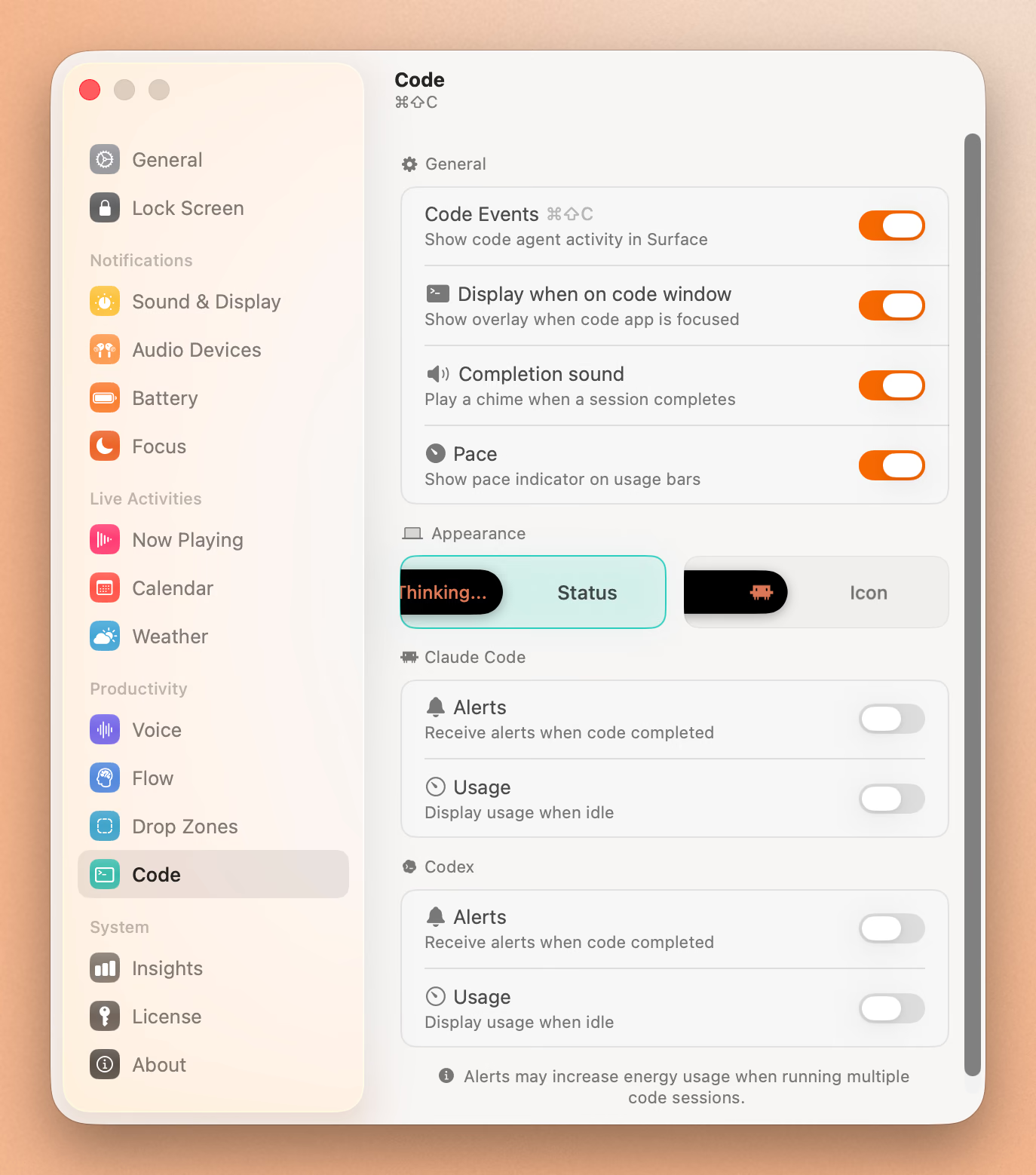
Setting up Claude Code status in the notch
Turn on Seam’s Code feature. Seam adds a small hook to Claude Code, and each time Claude starts a turn, runs a tool or stops, the hook tells Seam, and the notch changes to match.
- Install Seam. It needs macOS 14 Sonoma or later. On a Mac without a notch it runs as a floating bar at the top of the screen.
- Open Settings, then Code. Switch on Code Events. Seam checks for a
~/.claudefolder, and if it finds one it connects Claude Code for you. If not, flip Alerts under the Claude Code heading. - Run a prompt and leave the window. Go to your browser or your editor. The notch shows the stage Claude is in. When the turn ends, it shows Completed for 2 seconds and plays a chime if Completion sound is on.
To check the connection, open ~/.claude/settings.json. Seam adds 4 hook entries that point at ~/.seam/hooks/seam-claude-code.sh. Turn Alerts off and Seam removes them.
Claude Code stages in the notch
It shows 3 working stages and a finish. This is the full mapping, read from the hook script Seam installs:
| Claude Code event | Seam shows |
|---|---|
| You submit a prompt | Thinking |
| Tool call: Edit, Write, MultiEdit or Bash | Writing, with the tool name |
| Tool call: Read, Grep, Glob, Agent or Explore | Analyzing, with the tool name |
| Any other tool call, or a tool finishing | Thinking |
| Claude finishes its turn | Completed |
Pick Status in the Appearance row and you get the stage name beside an animated pixel loader. Pick Icon and you get the Claude Code mark alone, with the loader. You can switch off Analyzing, Thinking or Writing per agent if one is too chatty.
Run 2 sessions at once and Seam keeps one buffer per session ID. It shows the highest-priority one: Writing outranks Analyzing, which outranks Thinking.
Claude Code usage in the notch
When nothing is running, Seam can show the session and weekly usage bars for Claude Code, with a 7-day sparkline and a pace dot that says whether you’re on track. Turn on Usage under the Claude Code heading.
Seam reads the same numbers Anthropic reports for your plan. It takes the sign-in token Claude Code stored in your Keychain and asks Anthropic’s usage endpoint for the 5-hour session window and the 7-day window. That means it needs Claude Code signed in with a Pro or Max plan. If you use an API key, there are no plan windows to show, and the stage alerts still work.
The Claude chat app shares nothing Seam can read. Only Claude Code does.
Save an Hour Every Day
Music, timers, voice typing, calendar, and more. From the top of your screen.
Download for free
Limits of the Claude Code hook
3 limits, worth knowing before you rely on it.
- A permission prompt looks like silence. Seam hooks 4 Claude Code events, and “waiting for your approval” isn’t one of them. If Claude stops to ask, the working alert fades after 30 seconds with no events.
- It never shows Failed for Claude Code. The hook sends no failure signal. A session that ends in an error ends as Completed.
- It shows the machine you’re on. The hook posts a macOS notification on this Mac. A Claude Code session over SSH on another box doesn’t reach it.
The hook can’t slow Claude down either. The script swallows every error and always exits 0, so a Seam that’s closed or broken never puts a hook error in your transcript.
Other ways to see status
Claude Code’s built-in status line is the other route, and it’s good at what it does: model, context, git branch and cost, drawn at the bottom of the terminal. The Claude Code docs on status lines cover the setup. It answers a different question. A status line tells you the state of a session you’re looking at. Seam tells you the state of one you aren’t.
They don’t conflict. Many people run both: the status line for context and cost while they type, and Seam for knowing when to come back.
If you want the notch to cover more than coding agents, the same Code feature also tracks Codex, Cursor, Copilot, opencode, Gemini CLI and Antigravity. For a wider look at what a notch app can replace, see MacNotch: price, features and a lighter alternative.
Frequently asked questions
How do I see Claude Code status without switching windows?
Install Seam, open Settings, then Code, and turn on Claude Code alerts. The notch then shows Thinking, Analyzing, Writing or Completed while Claude works, in any app you’re using.
Does Seam work with Claude Code in VS Code or iTerm?
Yes. The hook runs from Claude Code itself, so it works from Terminal, iTerm, Warp and VS Code. Seam can hide its alert while one of those apps is focused, under Display when on code window.
Is seeing Claude Code status in the notch free?
Seam costs $19.90 once for 2 Macs, with a 48-hour trial. Claude Code usage bars need a Pro or Max plan, because Anthropic only reports those windows for plans.
Does Seam do the same for other coding agents?
Yes. Codex, Cursor, Copilot, opencode, Gemini CLI and Antigravity each get their own hook and their own switch under Code. See 4 NotchNook alternatives for how Seam compares with other notch apps.
Save an Hour Every Day
Music, timers, voice typing, calendar, and more. From the top of your screen.
Download for free